
ProtoPie AI is here — Now in Beta. Learn More
ProtoPie AI is here — Now in Beta. Learn More
INSIGHTS & INSPIRATION
PRODUCT LEARNING & SUPPORT
INSIGHTS & INSPIRATION
PRODUCT LEARNING & SUPPORT
Auto Layout
Triggers & Responses
Interaction Libraries
Connecting Devices
ProtoPie Enterprise
Menu
Auto Layout
Triggers & Responses
Interaction Libraries
Connecting Devices
ProtoPie Enterprise
Responses
In ProtoPie, a Response is an interaction piece that is triggered by a Trigger. It can be described as the action initiated by the trigger to which it is tied.
Move
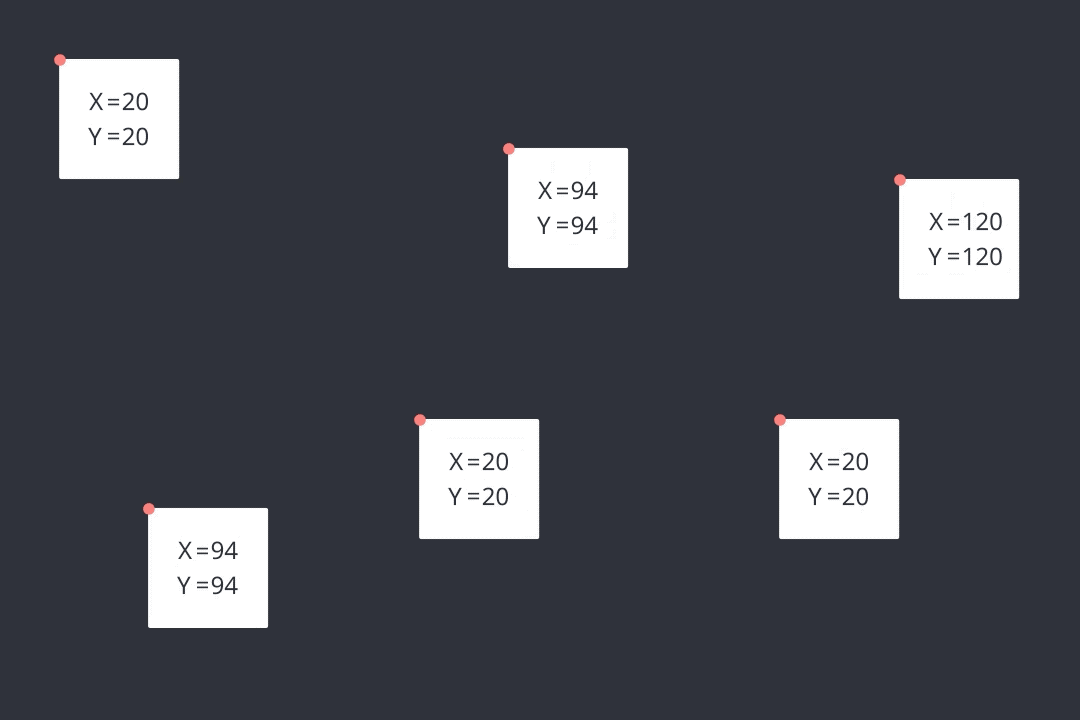
Moving a layer to specific coordinates.
Move
Coordinates for a layer’s destination
Move
Coordinates for a layer’s destination
Scale
Scaling a layer up or down.
Size
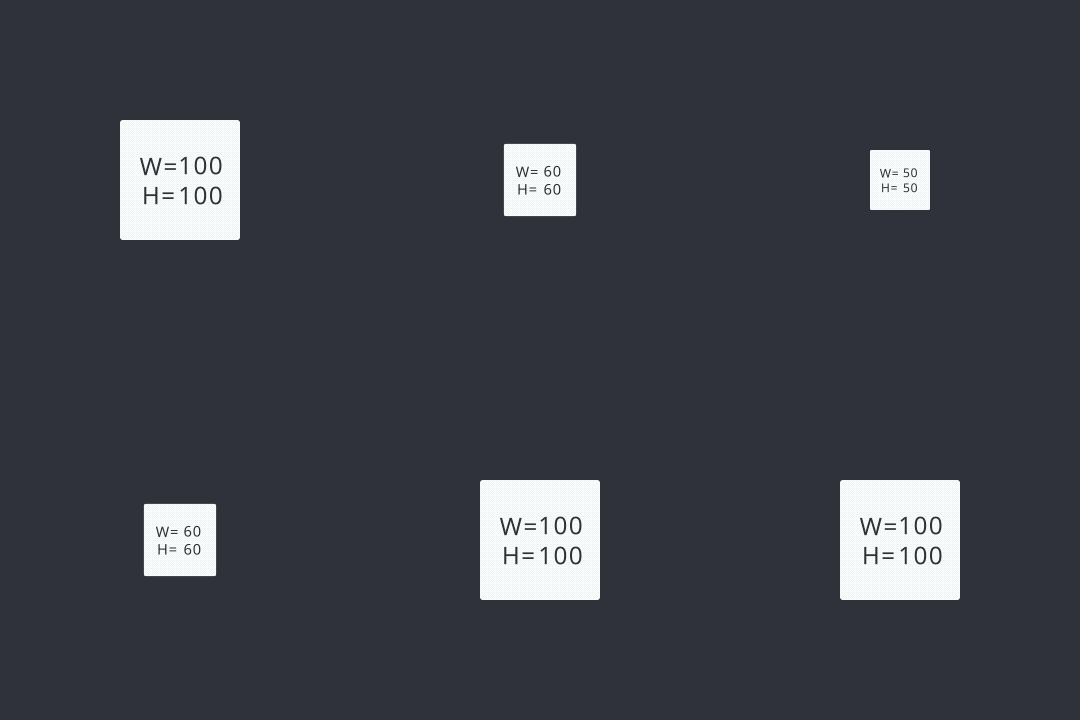
It is possible to modify the size of a layer with fixed values for the width and the height. (When containers are resized, the layers within the container remain unchanged.)
Factor
It is possible to modify the size of a layer proportionally by a certain %. (When containers are resized, the layers within the container are also resized.)
Size
It is possible to modify the size of a layer with fixed values for the width and the height. (When containers are resized, the layers within the container remain unchanged.)
Factor
It is possible to modify the size of a layer proportionally by a certain %. (When containers are resized, the layers within the container are also resized.)
Rotate
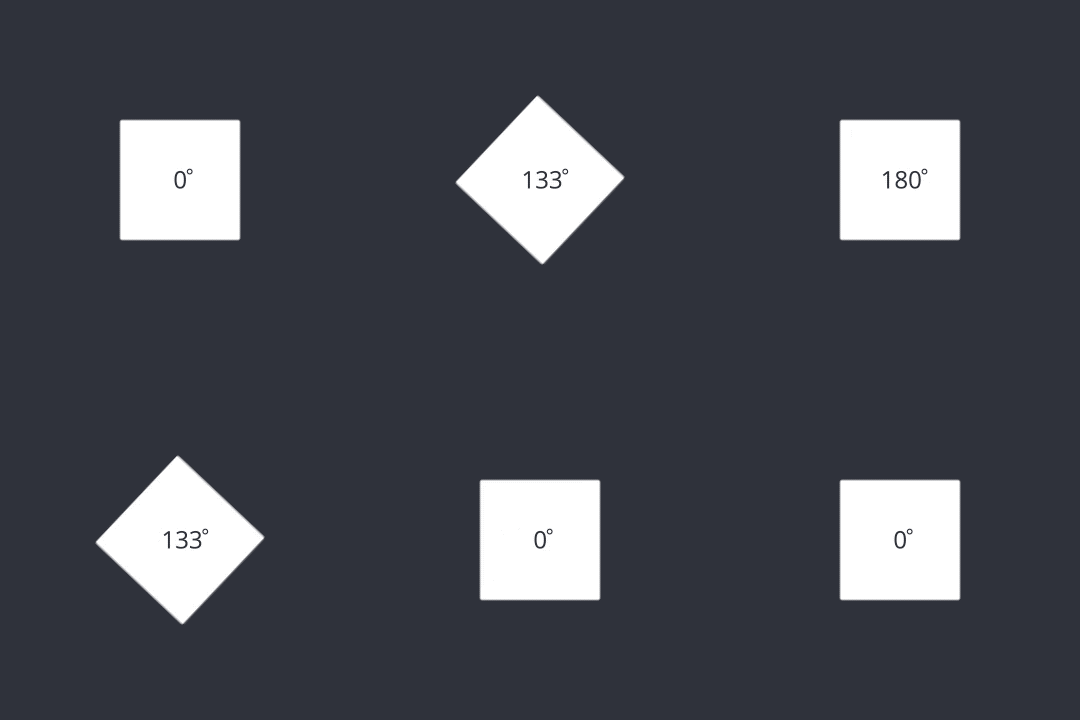
Rotating a layer to specific angles.
Rotate To
The angle a layer rotates to
Rotate By
The amount of rotation a layer rotates by
Direction
The area towards which a layer moves
Rotate To
The angle a layer rotates to
Rotate By
The amount of rotation a layer rotates by
Direction
The area towards which a layer moves
3D Rotate
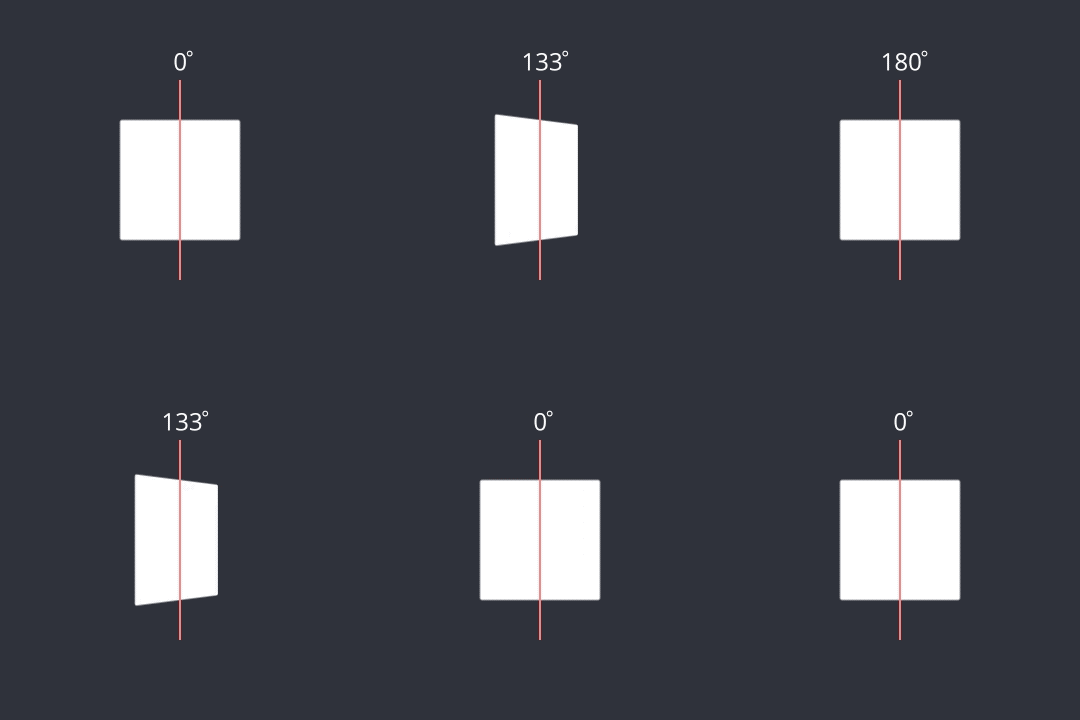
Rotating a layer to specific angles in a three-dimensional field.
Rotate To
The angle a layer rotates to
Rotate By
The amount of rotation a layer rotates by
Direction
The area towards which a layer moves
Pivot
The reference point from which a layer undergoes rotation or resizing
Perspective Depth
The distance between a layer and a point of focus for viewing
Rotate To
The angle a layer rotates to
Rotate By
The amount of rotation a layer rotates by
Direction
The area towards which a layer moves
Pivot
The reference point from which a layer undergoes rotation or resizing
Perspective Depth
The distance between a layer and a point of focus for viewing
Opacity
Changing the transparency of a layer.
Change To
Changing the layer’s opacity
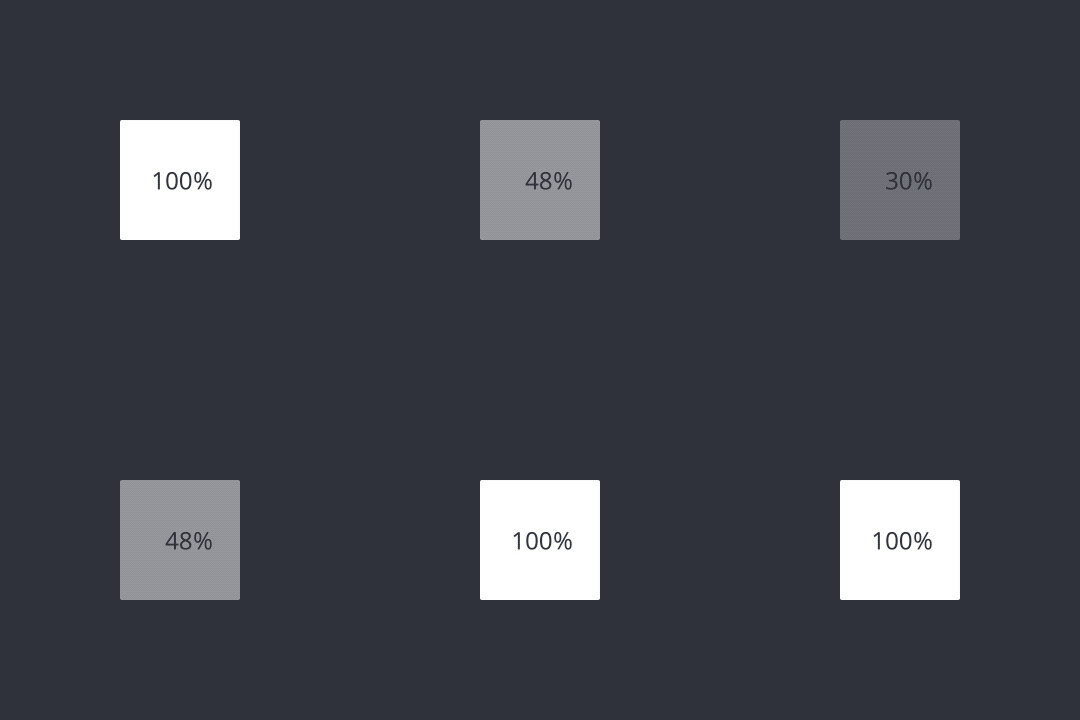
Change To
Changing the layer’s opacity
Color
Changing the color of a layer.
Fill
Changing the layer’s color
Border
Changing the layer’s border color
Shadow
Changing the layer’s shadow color
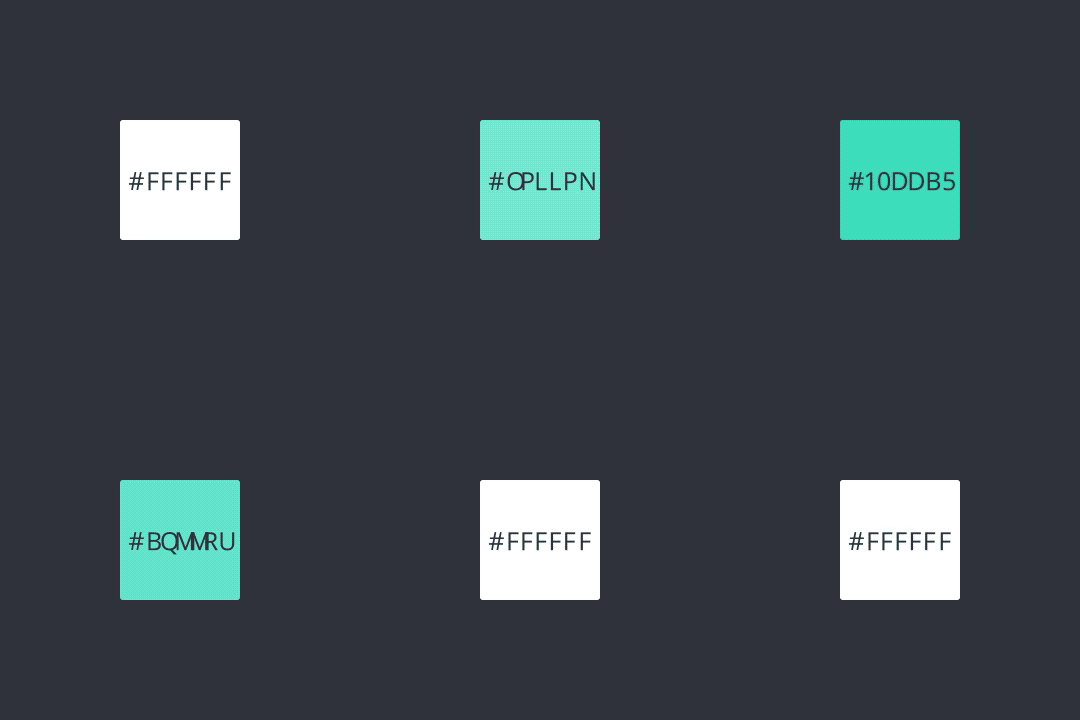
Fill
Changing the layer’s color
Border
Changing the layer’s border color
Shadow
Changing the layer’s shadow color
Radius
Changing the radius of individual corners or all corners of a layer.
Radius To
The value a radius should have.
Radius By
The amount that needs to be added or subtracted from the current radius.
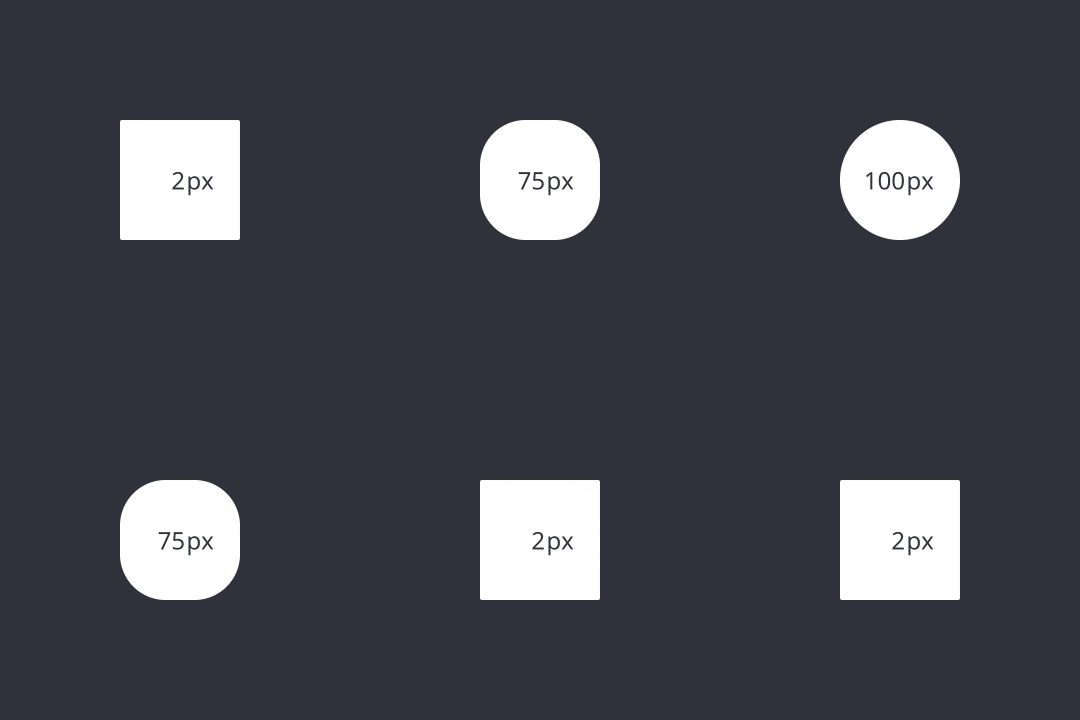
Radius To
The value a radius should have.
Radius By
The amount that needs to be added or subtracted from the current radius.
Border
Adding custom borders to a layer.
Border Position
Borders can be placed on the inside, center or outside of a layer’s outline

Border Position
Borders can be placed on the inside, center or outside of a layer’s outline
Shadow
Adding custom shadows to a layer.
Shadow
Shadows can be customized based on the chosen coordinates and blur

Shadow
Shadows can be customized based on the chosen coordinates and blur
Background Blur
Blurring underneath layers based on specific blur effects.
Default Effects
Extra Light
Light
Dark
Material Effects (Light and Dark themes)
Ultra Thin Material
Thin Material
Material
Thick Material
Chrome Material

Default Effects
Extra Light
Light
Dark
Material Effects (Light and Dark themes)
Ultra Thin Material
Thin Material
Material
Thick Material
Chrome Material
Reorder
Changing the order of layers in a stack.
Reorder
The changes of a layer’s order
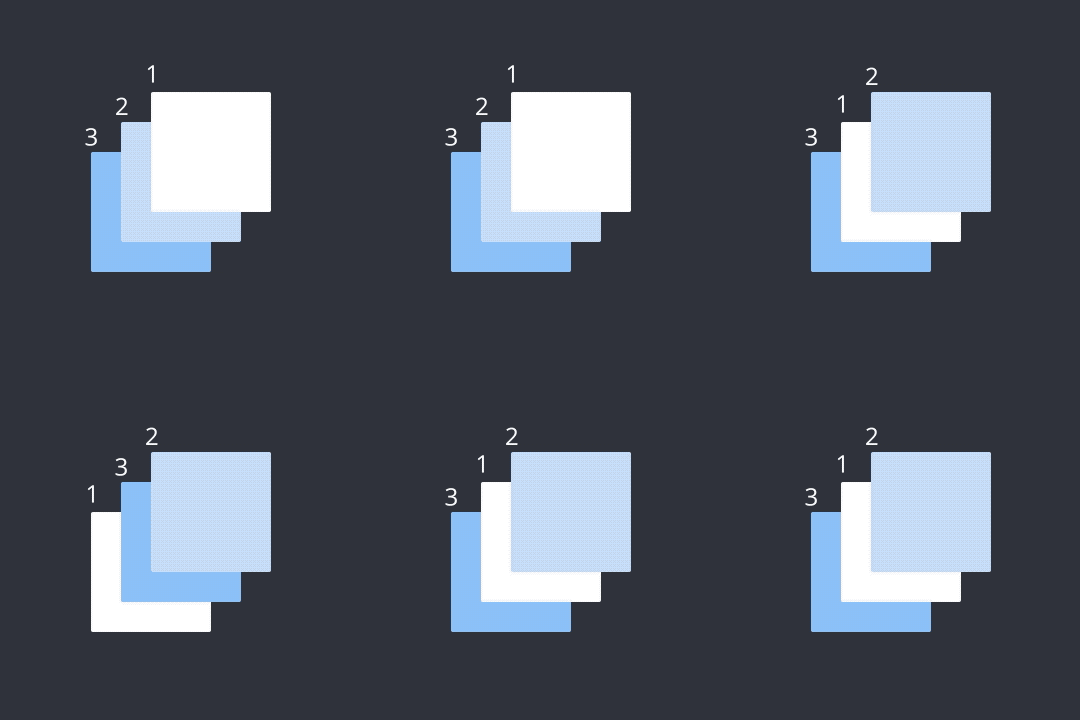
Reorder
The changes of a layer’s order
Scroll
Scrolling to a specific position within a container.
Scroll
The amount a layer scrolls

Scroll
The amount a layer scrolls
Jump
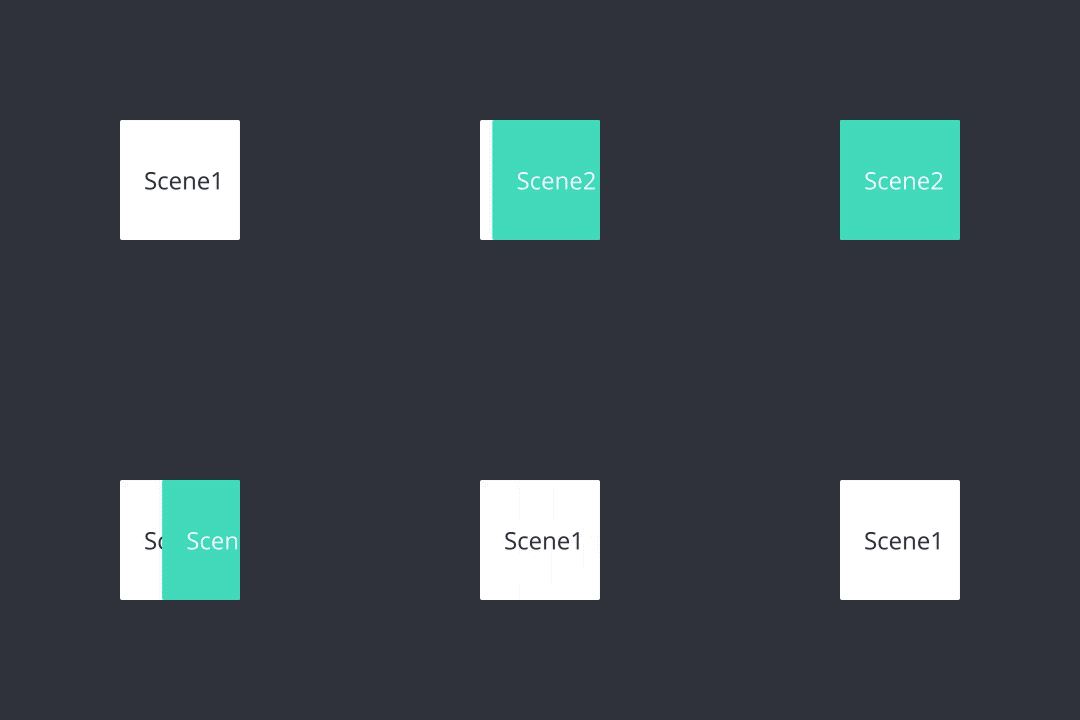
Going from one scene to another scene.
Use Smart Jump to animate transitions between scenes automatically. Learn more about Smart Jump.
Scene
Jump to a certain scene
Transition
Transition effects when jumping to a scene
Instant
Smart
Fade
Pop
Slide In
Slide Out
Flip
Reset the current scene
The selected scene will be reset when jumping to it. If this option is not enabled, the scene is left in its last state
Scene
Jump to a certain scene
Transition
Transition effects when jumping to a scene
Instant
Smart
Fade
Pop
Slide In
Slide Out
Flip
Reset the current scene
The selected scene will be reset when jumping to it. If this option is not enabled, the scene is left in its last state
Send
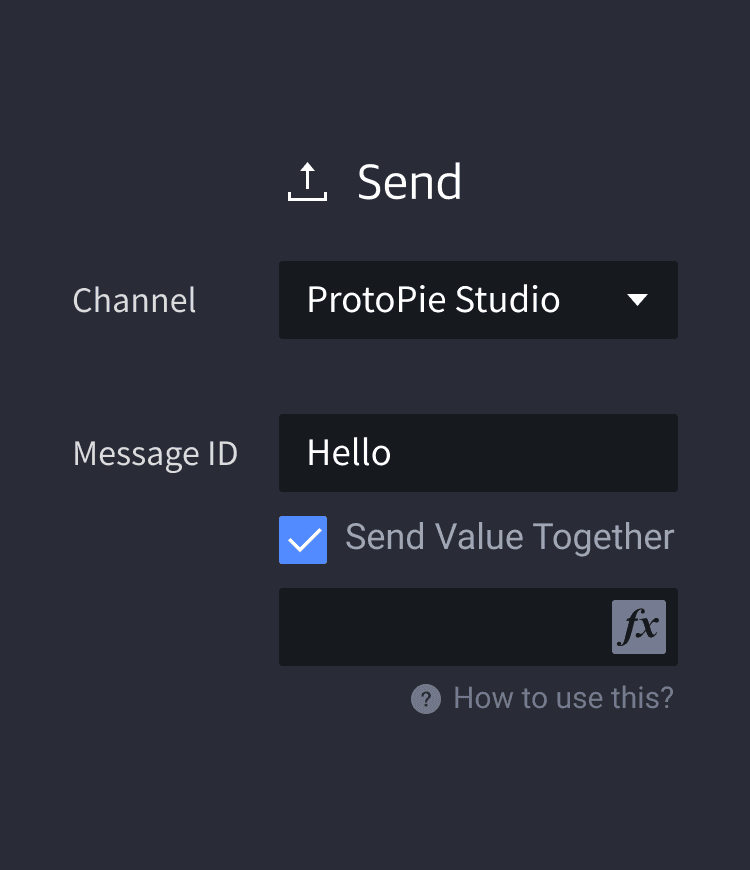
Send responses enable device interactions, but they cannot be used independently.
They must be used with Receive triggers. Such actions fire when a prototype with a Receive trigger receives a message sent from a different prototype through the Send response. The received message should always match the sent message.
Sending and receiving messages can be used within the same scene to modularize interactions or reuse a set of responses, avoiding repetitive work.
Channel [Component]
Inside the component, you can use the Send response to send a message and this can be received by a Receive trigger outside the component. This also works the other way around. Refer to Components for more information.
Channel [ProtoPie Connect/Studio]
Select ProtoPie Connect/Studio as a channel to allow interactions among devices (it works the same way for ProtoPie Connect).
Channel [Current Scene]
To modularize interactions or reuse a set of responses avoiding repetitive work, you can use Receive triggers and Send responses in one scene.
Message
A message is a string that is transmitted. The message in the Receive trigger on one device should match the message in the Send response, only then interactions among devices will take place.
Assign to Variable
It is possible to send a value together with a message. This value would have to be assigned to a variable upon receiving.
Channel [Component]
Inside the component, you can use the Send response to send a message and this can be received by a Receive trigger outside the component. This also works the other way around. Refer to Components for more information.
Channel [ProtoPie Connect/Studio]
Select ProtoPie Connect/Studio as a channel to allow interactions among devices (it works the same way for ProtoPie Connect).
Channel [Current Scene]
To modularize interactions or reuse a set of responses avoiding repetitive work, you can use Receive triggers and Send responses in one scene.
Message
A message is a string that is transmitted. The message in the Receive trigger on one device should match the message in the Send response, only then interactions among devices will take place.
Assign to Variable
It is possible to send a value together with a message. This value would have to be assigned to a variable upon receiving.
Link
Opening websites or apps through URL schemes.
URL
You can enter website URLs and visit a website in the browser or the in-app browser on iOS.
e.g. https://protopie.io
e.g. https://www.google.com/search?q=protopie
URL schemes allow you to open system apps and third-party apps on iOS and Android devices. Third-party apps usually have their own defined URL schemes.
e.g. mailto:hello@protopie.io
e.g. tel:+1-212-555-1234
e.g. whatsapp://send?text=[[hello]]
e.g. fb://feed
e.g. slack://open?team={TEAM_ID}
Formula
You can enter formulas and use the Link response more dynamically.
e.g. "https://www.google.com/search?q=" +
Input 1.texte.g. "https://www.amazon.com/s/field-keywords=" +
keyword.text
URL
You can enter website URLs and visit a website in the browser or the in-app browser on iOS.
e.g. https://protopie.io
e.g. https://www.google.com/search?q=protopie
URL schemes allow you to open system apps and third-party apps on iOS and Android devices. Third-party apps usually have their own defined URL schemes.
e.g. mailto:hello@protopie.io
e.g. tel:+1-212-555-1234
e.g. whatsapp://send?text=[[hello]]
e.g. fb://feed
e.g. slack://open?team={TEAM_ID}
Formula
You can enter formulas and use the Link response more dynamically.
e.g. "https://www.google.com/search?q=" +
Input 1.texte.g. "https://www.amazon.com/s/field-keywords=" +
keyword.text
Text
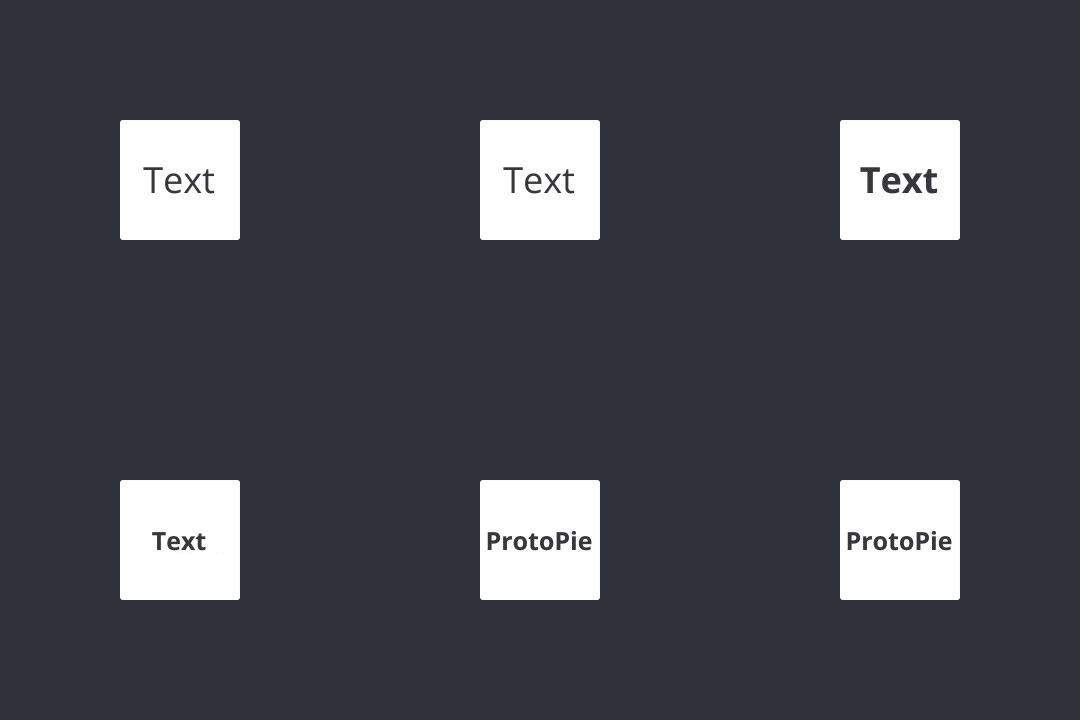
Changing the content and properties of a text layer. Text responses have no duration.
Change To
The text content will be changed to that desired by the user
Size
The text is resized
Weight
The text can be made bolder or lighter
Alignment
The text’s horizontal or vertical alignment can be adjusted
Line Spacing
The text’s line spacing can be adjusted
Change To
The text content will be changed to that desired by the user
Size
The text is resized
Weight
The text can be made bolder or lighter
Alignment
The text’s horizontal or vertical alignment can be adjusted
Line Spacing
The text’s line spacing can be adjusted
Media
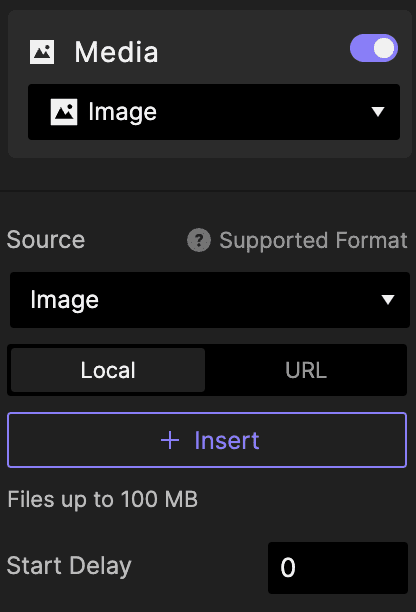
Modifying the content of an image, video, or Lottie layer. Depending on your plan, you can import images from your local files or, for Enterprise users, from a self-hosted URL.
The following formats are supported:
Image: PNG, JPG, JPEG, BMP, GIF, SVG, and WebP.
Video: MP4 (H.264), WebM, and MOV files up to 100 MB.
Lottie: ProtoPie does not support Lottie files that use expressions.
Learn more about the supported media files.
Source
Choose an image, video, or Lottie from your device or import one from a self-hosted URL.
Start Delay
Enter the time delay to start the response.
Source
Choose an image, video, or Lottie from your device or import one from a self-hosted URL.
Start Delay
Enter the time delay to start the response.
Focus
Focusing in or out of an input layer.
Focus In
The cursor focuses in on the selected Input Layer.
Focus Out
The cursor focuses out of the selected Input Layer.

Focus In
The cursor focuses in on the selected Input Layer.
Focus Out
The cursor focuses out of the selected Input Layer.
Camera
Accessing or exiting the device's native camera.
The Camera response must be used together with the camera layer. It also enables you to utilize the QR & Barcode Scanner function for scanning QR codes and barcodes directly within your prototype.
Action [Start]
Start the camera. You can choose between the front-facing camera and the rear-facing camera.
Action [Stop]
Stop the camera.
Camera [Current Camera]
Use the current camera.
Camera [Front Camera]
Use the current camera.
Camera [Rear Camera]
Use the rear-facing camera.
Camera [Switch]
Use the camera facing the opposite side of the last used camera.
QR & Barcode Scanner
Enable scanning QR and barcodes from within your prototype.
Open URL Immediately
Scan a QR code to open a link in a web browser. To scan barcodes, utilize the Keep Tracking option.
Keep Tracking
Monitor values stored in your QR or barcode.
Action [Start]
Start the camera. You can choose between the front-facing camera and the rear-facing camera.
Action [Stop]
Stop the camera.
Camera [Current Camera]
Use the current camera.
Camera [Front Camera]
Use the current camera.
Camera [Rear Camera]
Use the rear-facing camera.
Camera [Switch]
Use the camera facing the opposite side of the last used camera.
QR & Barcode Scanner
Enable scanning QR and barcodes from within your prototype.
Open URL Immediately
Scan a QR code to open a link in a web browser. To scan barcodes, utilize the Keep Tracking option.
Keep Tracking
Monitor values stored in your QR or barcode.
Playback
Playing, pausing, and seeking video, audio, and Lottie layers.
Play
Play the audio, video, or Lottie file.
Pause
Pause the audio, video, or Lottie file.
Seek
Move to a specific point in the audio, video, or Lottie file. Enter a timestamp following the MM:SS.SS format.
It's possible to use formulas. This way, you can make a working scrubber. See example.
Play
Play the audio, video, or Lottie file.
Pause
Pause the audio, video, or Lottie file.
Seek
Move to a specific point in the audio, video, or Lottie file. Enter a timestamp following the MM:SS.SS format.
It's possible to use formulas. This way, you can make a working scrubber. See example.
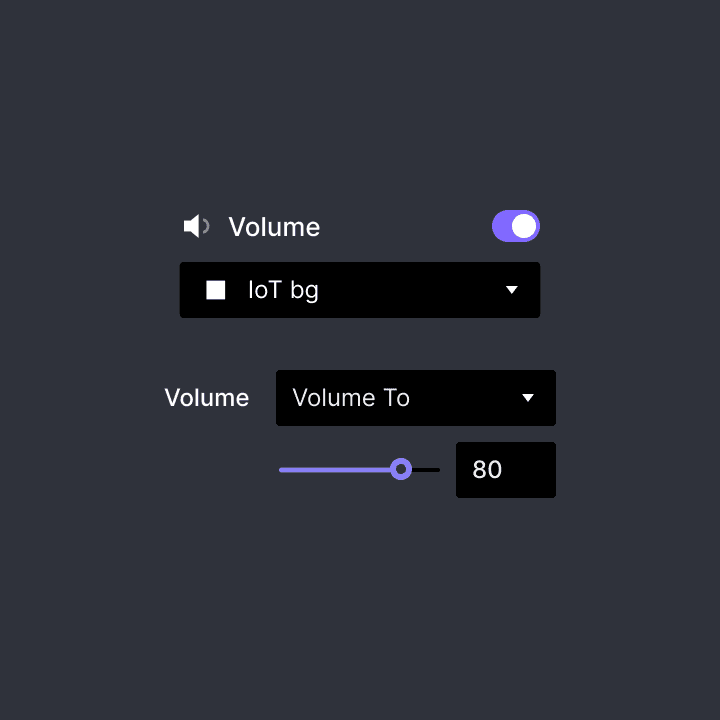
Volume
Controlling the volume of video or audio files.
Volume To
Adjusting the volume of an audio or video layer
Volume To
Adjusting the volume of an audio or video layer
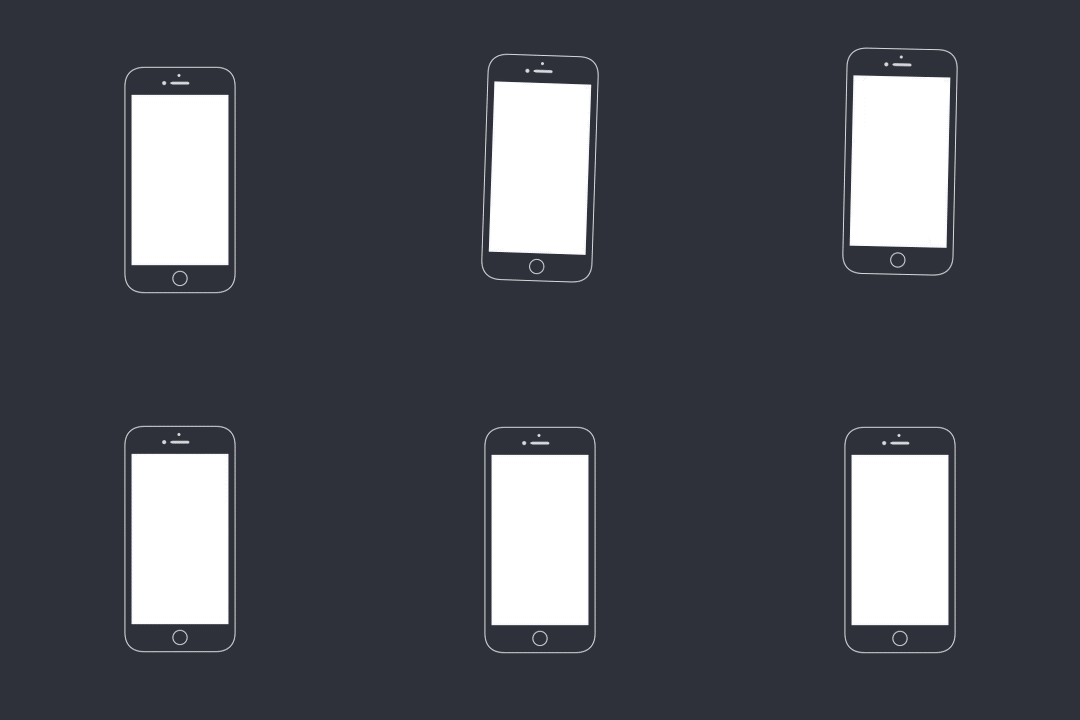
Vibrate
Activating vibration and haptic feedback on smart devices.
Refer to Google's Android Developer Documentation and Apple's Human Interface Guidelines for more information about haptic feedback.
iOS
Default: Basic vibration.
Notification - Success: Indicates that a task or action, such as depositing a check or unlocking a vehicle, has completed.
Notification - Warning: Indicates that a task or action, such as depositing a check or unlocking a vehicle, has produced a warning of some kind.
Notification - Failure: Indicates that a task or action, such as depositing a check or unlocking a vehicle, has failed.
Impact - Light/Medium/Heavy: Provides a physical metaphor that complements the visual experience. For example, the user might feel a thud when a view slides into place or two objects collide.
Selection - Selection: Indicates that the selection is actively changing. For example, the user feels light taps while scrolling a picker wheel. This feedback is intended for communicating movement through a series of discrete values, not making or confirming a selection.
Android
Default: Basic vibration.
Keyboard Press: Haptic feedback when the user has pressed a virtual or software keyboard key.
Keyboard Tap: Haptic feedback when the user has pressed a soft keyboard key.
Long Press: Haptic feedback when the user has performed a long press on an object that is resulting in an action being performed.
Virtual Key: Haptic feedback when the user has pressed on a virtual on-screen key.
iOS
Default: Basic vibration.
Notification - Success: Indicates that a task or action, such as depositing a check or unlocking a vehicle, has completed.
Notification - Warning: Indicates that a task or action, such as depositing a check or unlocking a vehicle, has produced a warning of some kind.
Notification - Failure: Indicates that a task or action, such as depositing a check or unlocking a vehicle, has failed.
Impact - Light/Medium/Heavy: Provides a physical metaphor that complements the visual experience. For example, the user might feel a thud when a view slides into place or two objects collide.
Selection - Selection: Indicates that the selection is actively changing. For example, the user feels light taps while scrolling a picker wheel. This feedback is intended for communicating movement through a series of discrete values, not making or confirming a selection.
Android
Default: Basic vibration.
Keyboard Press: Haptic feedback when the user has pressed a virtual or software keyboard key.
Keyboard Tap: Haptic feedback when the user has pressed a soft keyboard key.
Long Press: Haptic feedback when the user has performed a long press on an object that is resulting in an action being performed.
Virtual Key: Haptic feedback when the user has pressed on a virtual on-screen key.
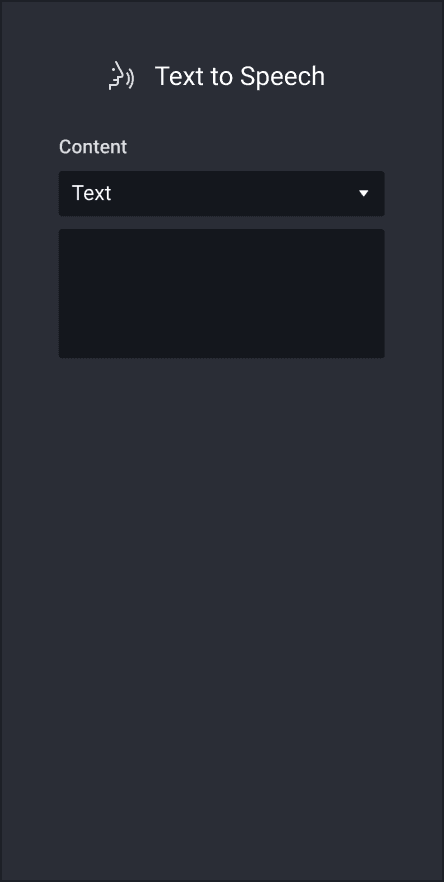
Speak
Activating reading a text out loud, either by inputting the text or through a formula.
Learn more about voice prototyping.
Text
You can enter the text to be read out loud.
Formula
To make your voice interaction more dynamic, you can use formulas as long as the used formula results in a text. Also, you can use the predefined variable $voiceTranscript that stores the last voice command.
Language
You can choose from 40 languages and language variants.
Voiced by
You can choose between a female and male voice per language.
Speed
You can adjust the speed by choosing a value between 0.5 and 2.
Pitch
You can adjust the pitch by choosing a value between 0.5 and 2.
Text
You can enter the text to be read out loud.
Formula
To make your voice interaction more dynamic, you can use formulas as long as the used formula results in a text. Also, you can use the predefined variable $voiceTranscript that stores the last voice command.
Language
You can choose from 40 languages and language variants.
Voiced by
You can choose between a female and male voice per language.
Speed
You can adjust the speed by choosing a value between 0.5 and 2.
Pitch
You can adjust the pitch by choosing a value between 0.5 and 2.
Listen
Activating listening to voice commands.
By default, prototypes do not pick up any voice commands. Hence, listening needs to be enabled first. Prototypes can listen to voice commands continuously for up to 5 minutes.
Learn more about voice prototyping.
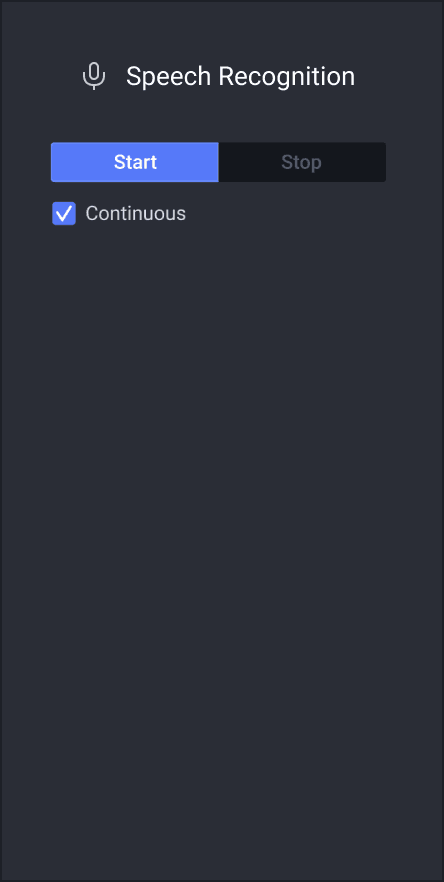
Continuous
When listening to voice commands is enabled, it would stop automatically as soon as no speech is being picked up anymore. In order to avoid this, you can check Continuous to make sure listening remains enabled even when no voice commands are picked up.
When Continuous has been checked, you would need a separate Listen response to stop listening. This means that when Continuous is unchecked, you do not need a separate Listen response to stop listening.
Continuous
When listening to voice commands is enabled, it would stop automatically as soon as no speech is being picked up anymore. In order to avoid this, you can check Continuous to make sure listening remains enabled even when no voice commands are picked up.
When Continuous has been checked, you would need a separate Listen response to stop listening. This means that when Continuous is unchecked, you do not need a separate Listen response to stop listening.
Reset
Resetting the current scene, a layer, or a variable. You can reset the whole scene and also default a layer or variable back to its initial state.
Stop
Halting the animation of a layer. For example, you can use Stop to stop a loading or progress bar.
Assign
Overwriting the value stored in a variable.
Condition
Configuring parameters that need to be met to trigger responses.
> Greater than
A Response is triggered when a property of the target layer exceeds that set for this property
≥ Greater than or equal to
A Response is triggered when a property of the target layer reaches or exceeds that set for this property
< Less than
A Response is triggered when a property of the target layer goes below that set for this property
≤ Less than or equal to
A Response is triggered when a property of the target layer reaches or goes below that set for this property
= Equal to
A Response is triggered when a property of the target layer is exactly the same as that set for this property.
≠ Not equal to
A Response is triggered when a property of the target layer is not exactly the same as that set for this property

> Greater than
A Response is triggered when a property of the target layer exceeds that set for this property
≥ Greater than or equal to
A Response is triggered when a property of the target layer reaches or exceeds that set for this property
< Less than
A Response is triggered when a property of the target layer goes below that set for this property
≤ Less than or equal to
A Response is triggered when a property of the target layer reaches or goes below that set for this property
= Equal to
A Response is triggered when a property of the target layer is exactly the same as that set for this property.
≠ Not equal to
A Response is triggered when a property of the target layer is not exactly the same as that set for this property