
Using the Gamepad Plugin in ProtoPie Connect
The Gamepad plugin is one of the many built-in plugins in ProtoPie Connect that allows you to create dynamic, multi-device prototyping experiences. Read along to see how the Gamepad plugin works.
How It Works
Prerequisites
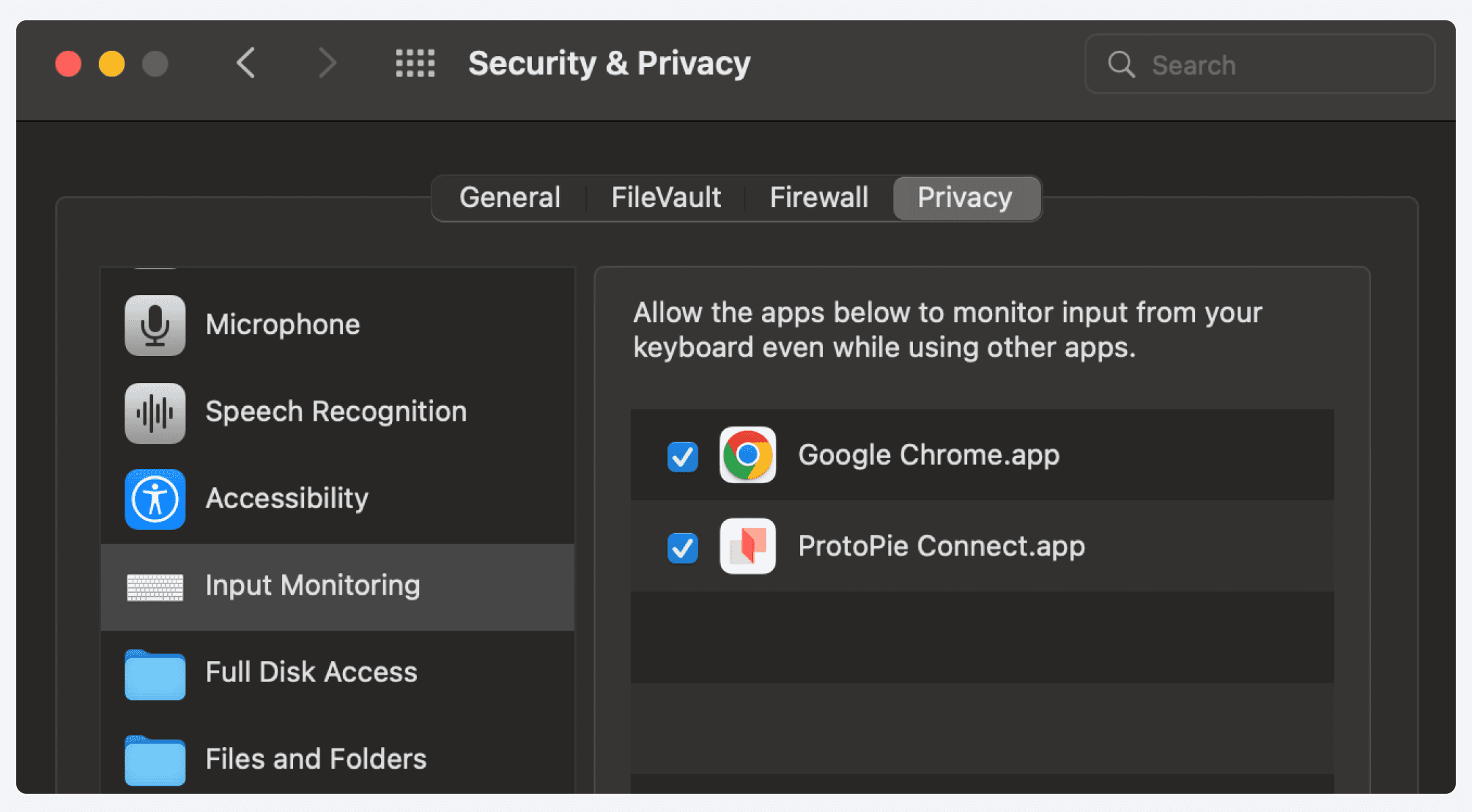
In the Security & Privacy Settings of your computer, enable Input Monitoring for both ProtoPie Connect and your browser.
Getting Set-Up
Open ProtoPie Connect.
Connect your Gamepad via USB or Bluetooth to the machine where ProtoPie Connect is running.
In the Gamepad Settings window, Device Status will indicate Connected when the Gamepad is detected. If the plugin does not recognize the gamepad, try pressing some buttons on the Gamepad first.
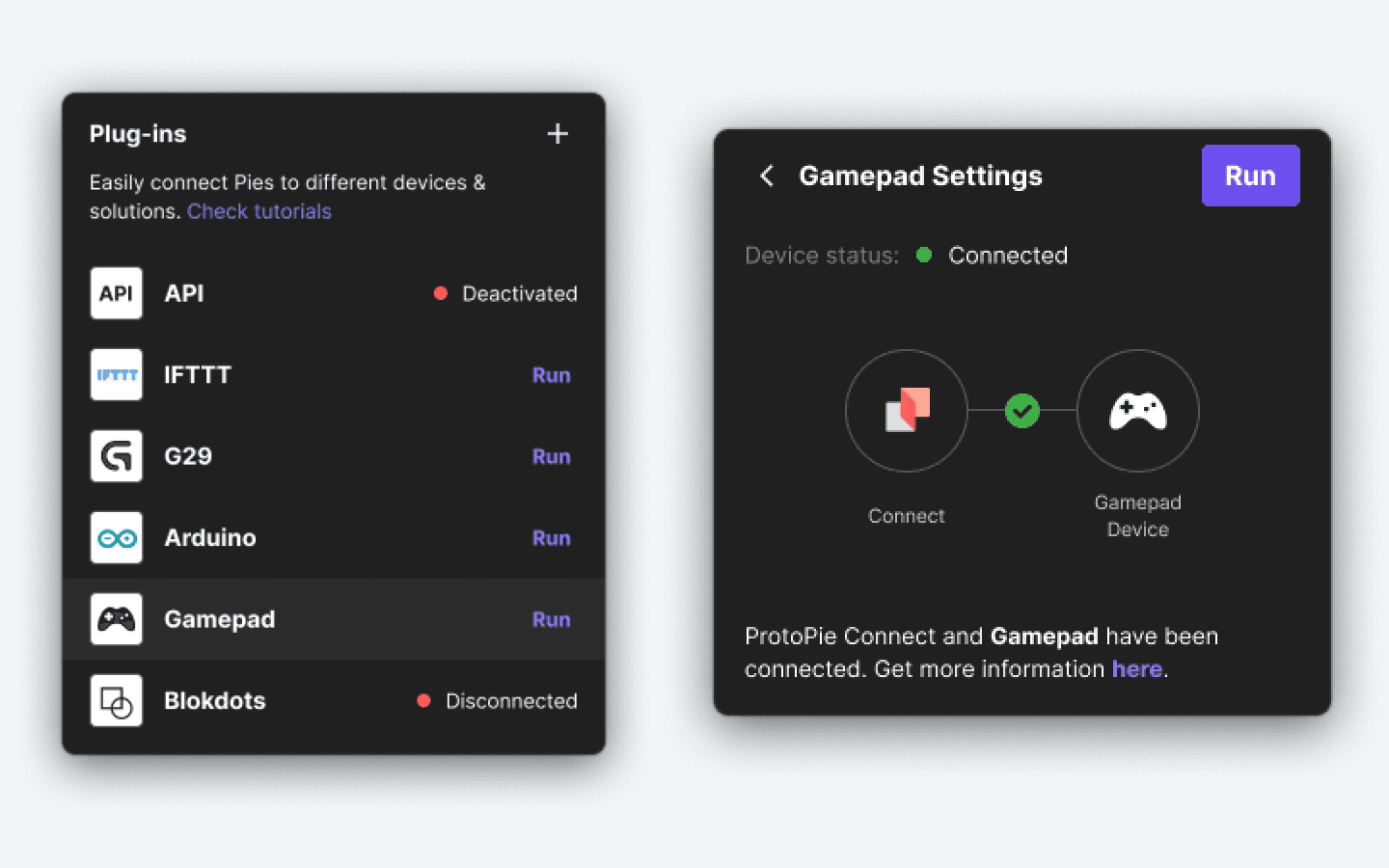
Press Run to activate the gamepad connection with ProtoPie Connect.
When the Gamepad buttons are pressed, ProtoPie Connect automatically detects the keystrokes and broadcasts message and value pairs to the Pies running on Connect.
Connecting Multiple Gamepads
ProtoPie Connect supports connections with multiple Gamepads.
The message will follow the below format:
{Gamepad Number}_{Button Name}
Gamepad Number is assigned from 1 in the following connection order:
Gamepad connected first will have Gamepad number of 1.
Gamepad connected second will have Gamepad number of 2.
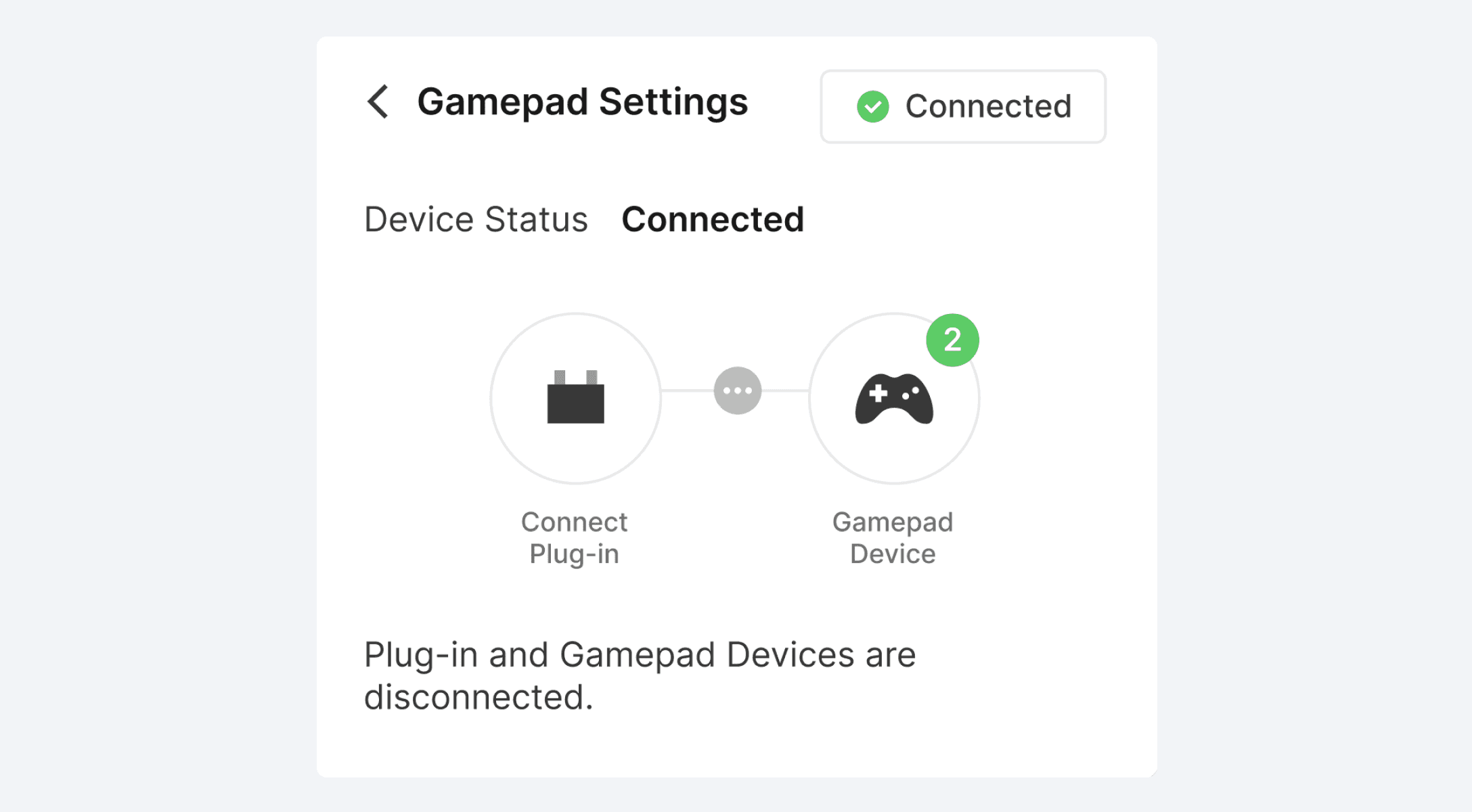
The number of connected gamepads is displayed in the Gamepad Settings window.
Gamepad Buttons and Messages
Gamepad buttons and messages are as follows (assuming messages are received from the first connected gamepad).
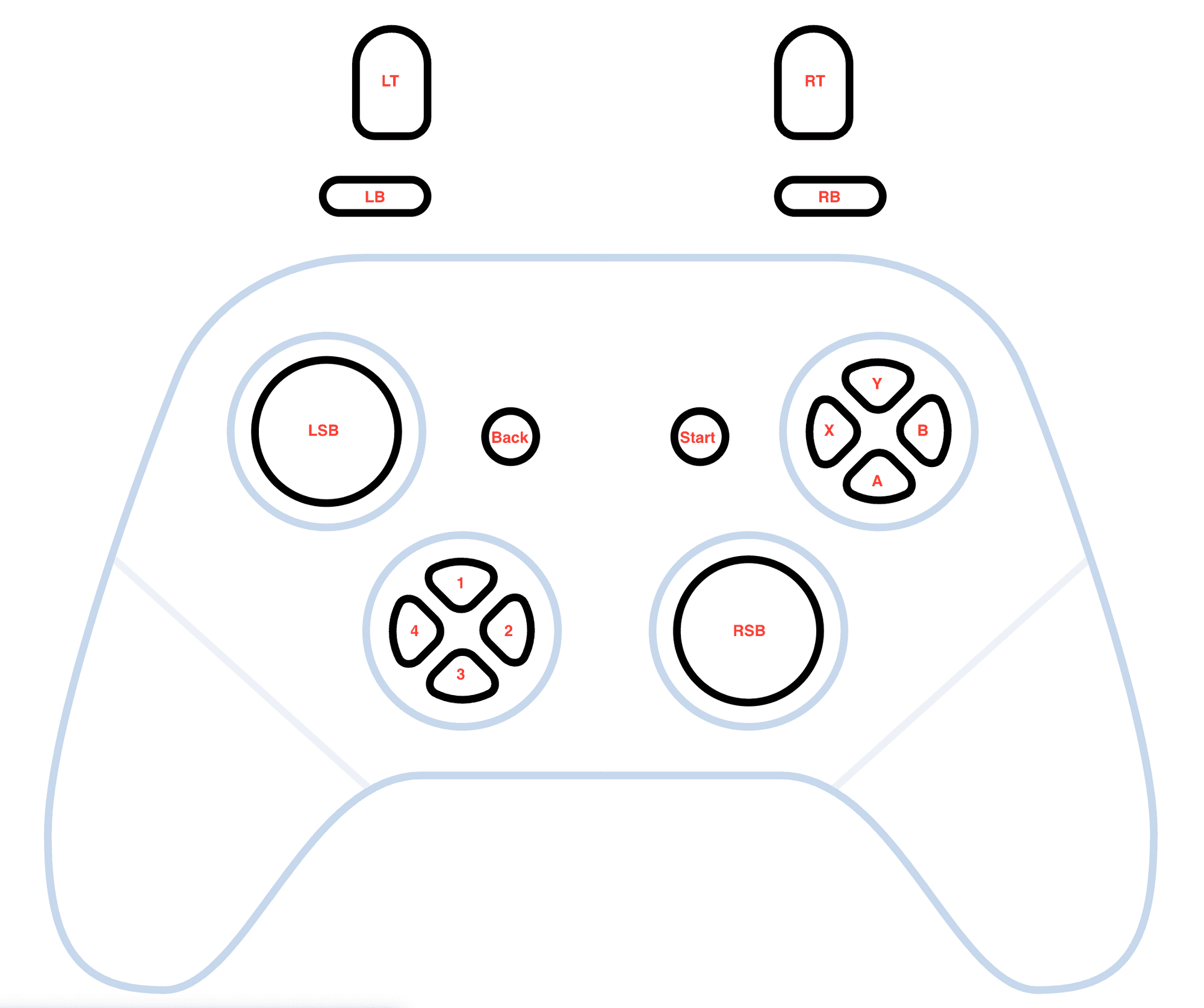
Gamepad Plugin – Buttons and Messages
Gamepad button | ProtoPie Connect message | Value |
|---|---|---|
LT | 1_button6 | 10,0 |
LB | 1_button4 | 1,0 |
RT | 1_button7 | 10,0 |
RB | 1_button5 | 1,0 |
X | 1_button2 | 1,0 |
Y | 1_button3 | 1,0 |
A | 1_button0 | 1,0 |
B | 1_button1 | 1,0 |
Start | 1_button9 | 1,0 |
Back | 1_button8 | 1,0 |
1 | 1_button12 | 1,0 |
2 | 1_button15 | 1,0 |
3 | 1_button13 | 1,0 |
4 | 1_button14 | 1,0 |
RSB X axis | 1_axe2 | 10 to -10 |
RSB Y axis | 1_axe3 | 10 to -10 |
LSB X axis | 1_axe0 | 10 to -10 |
LSB Y axis | 1_axe1 | 10 to -10 |
Learn more about ProtoPie Connect's various built-in plugins, such as API, IFTTT, Logitech G29 Steering Wheel, Arduino, blokdots, and Unity plugins.