
Layers
ProtoPie allows you to use layers for shapes like rectangles, ovals, stars, and polygons, as well as media like images, videos, and Lottie animations.
Layer Properties
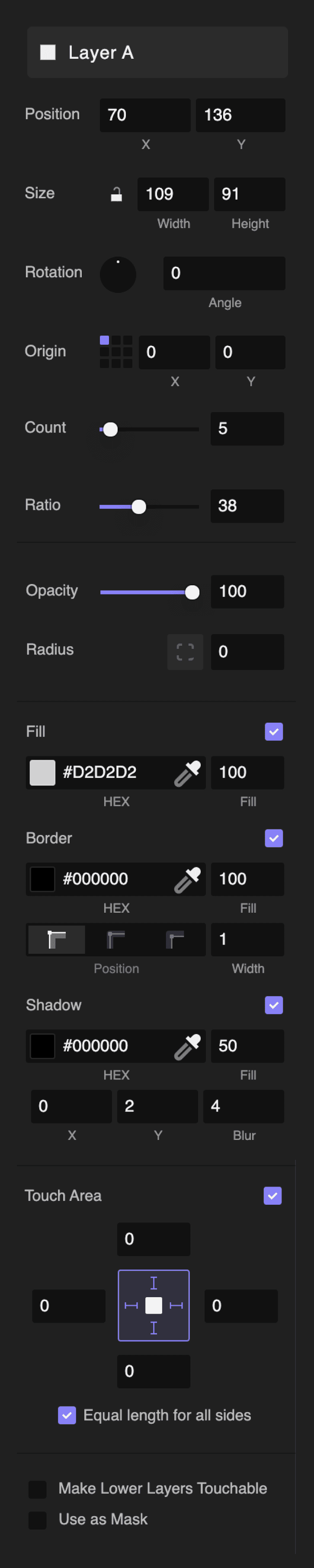
Image Layer
You can seamlessly integrate and refine images within your prototype with the Image layer. ProtoPie supports the following image formats: PNG, JPG, JPEG, BMP, GIF, SVG, and WebP.
How do you add image layers?
There are two ways to add image layers to your project. The first one is to drag and drop the image onto the scene. The second way is to create an image layer and select an image by setting the fill property. To maintain the image's original dimensions, click the 'Apply original ratio' option in the property panel.
Depending on your plan, you can import images from your local files or, for Enterprise users, from a self-hosted URL.
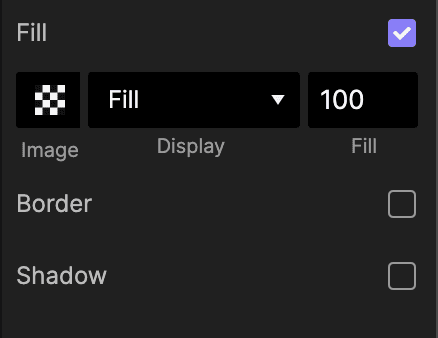
Fine-tune various aspects such as opacity, radius, fill, and more directly from the Properties panel to achieve the desired visual effects.
SVG Layer
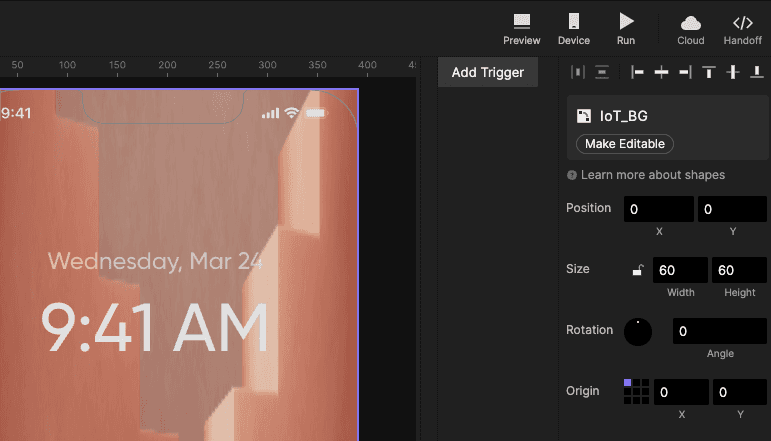
In ProtoPie, you can import Scalable Vector Graphics (SVG) and edit their properties by converting them to shapes using the 'Make Editable' option without losing quality.
When working with SVG files that ProtoPie doesn't fully support, the 'Make Editable' button could change how the layers look.
Color gradients and multi-color fills are currently not supported.
You can copy SVG code from Sketch, Figma, Adobe XD, or Zeplin and paste it directly into ProtoPie.
Import vector layers as SVG with the ProtoPie plugin for Figma.
Video Layer
You can add videos by dragging and dropping them onto the scene or by creating a video layer and selecting your preferred video. If you want to maintain the original dimensions of the video, you can click on the 'Apply original ratio' option in the property panel.
Depending on your plan, you can import videos from your local files or, for Enterprise users, from a self-hosted URL.
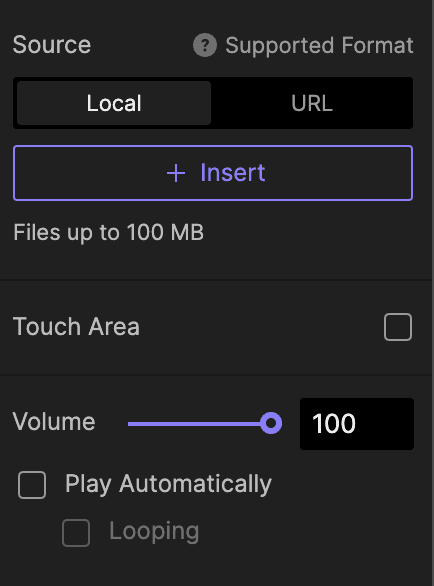
ProtoPie supports MP4 (H.264), WebM, and MOV video files up to 100 MB. However, before importing your video into ProtoPie Studio, it is crucial to ensure that your video meets specific criteria for seamless testing with ProtoPie Player on mobile devices:
For iOS:
Supported formats include MP4 (H.264) and MOV.
M4V, MP4, MOV file formats encoded with H.265/H.264 video, up to 4K/60 fps, High Profile level 4.2 with AAC-LC audio up to 160 Kbps, 48kHz, stereo audio.
M4V, MP4, MOV file formats encoded with MPEG-4 video up to 2.5 Mbps, 480p/30 fps, Simple Profile with AAC-LC audio up to 160 Kbps, 48kHz, stereo audio.
AVI file formats encoded with Motion JPEG (M-JPEG) up to 35 Mbps, 1280 by 720 pixels, 30 frames per second, audio in ulaw, PCM stereo audio.
Reference:
For Android:
Supported formats include MP4 (H.264) and WebM.
Reference:
Video with Transparent Background
By supporting videos with transparent backgrounds, ProtoPie takes a pioneering step towards 3D while enhancing the performance of your prototypes.
Before importing your video into the ProtoPie Studio scene, verify that the video codec and format meet the below criteria to ensure optimal performance within their designated platform, whether the Preview window, ProtoPie Player, or ProtoPie Cloud.
Transparent background videos perform at their best under the following conditions:
For the Web: Chrome supports VP9 with alpha (.webm), and Safari supports HEVC with alpha (.mov, *.mp4).
For iOS: It's recommended to use HEVC with alpha. Incorrect codec/format on iOS may lead to content not displaying correctly within the designated area.
For Android: Android does not natively support video files with alpha channels.
Lottie Layer
A Lottie media layer loads a JSON file containing parsed Adobe After Effects animations exported with Bodymovin. Learn more about LottieFiles.
You can add Lottie files by dragging and dropping them onto the scene or by creating a Lottie layer and selecting your preferred Lottie file. If you want to maintain the original dimensions of your Lottie file, you can click on the 'Apply original ratio' option in the property panel.
Depending on your plan, you can import Lottie files from your local files or, for Enterprise users, from a self-hosted URL.
Audio Layer
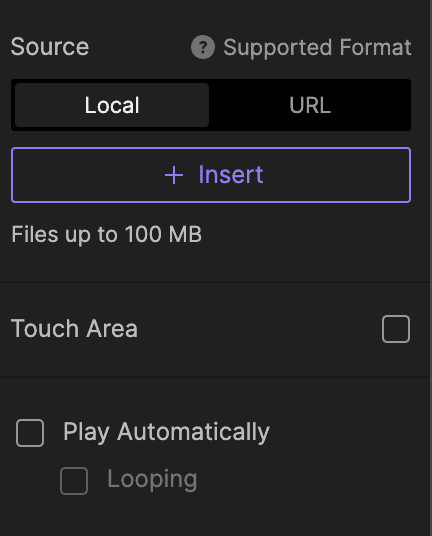
ProtoPie supports WAV, MP3, and M4A audio files.
Camera Layer
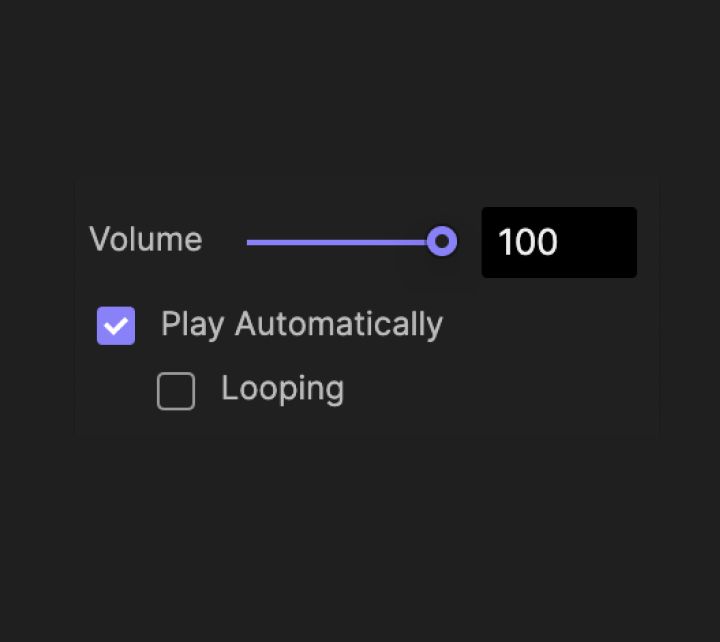
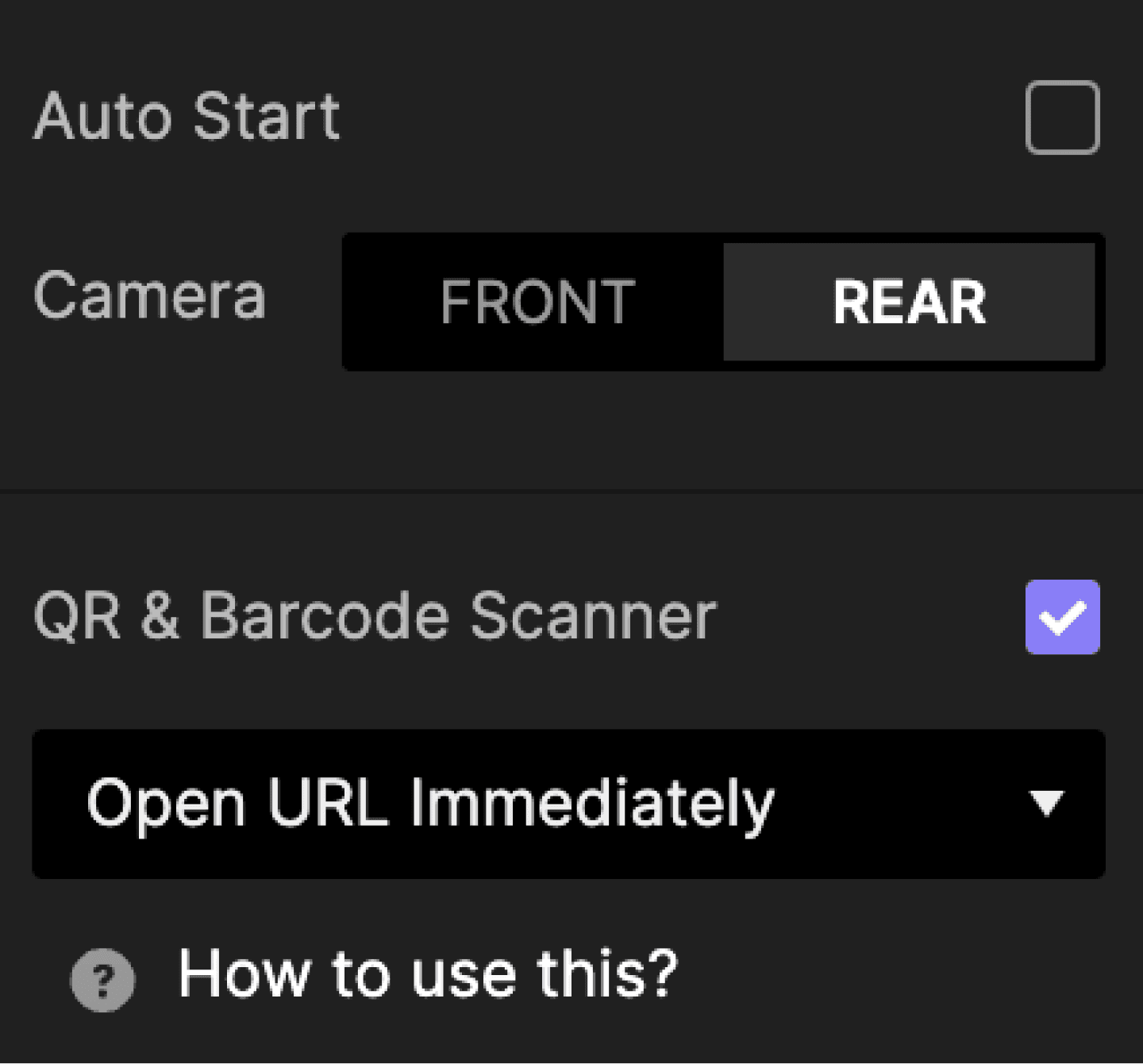
You can use the output from your smart device's native camera as a layer in your prototype and even scan QR and barcodes. This only works when you test the prototype using ProtoPie Player. A placeholder is shown instead when you run the prototype in the preview window or web browser.
Text Layer
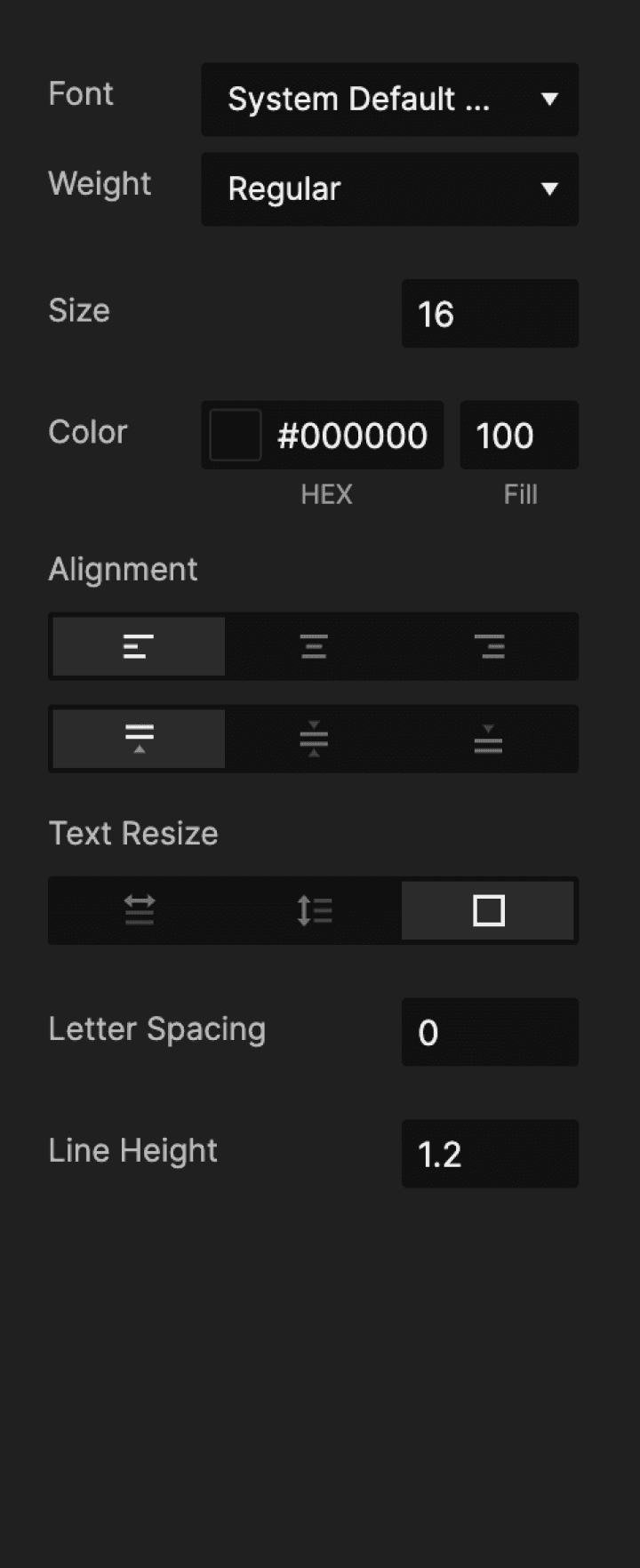
A text layer is a layer that displays a text.
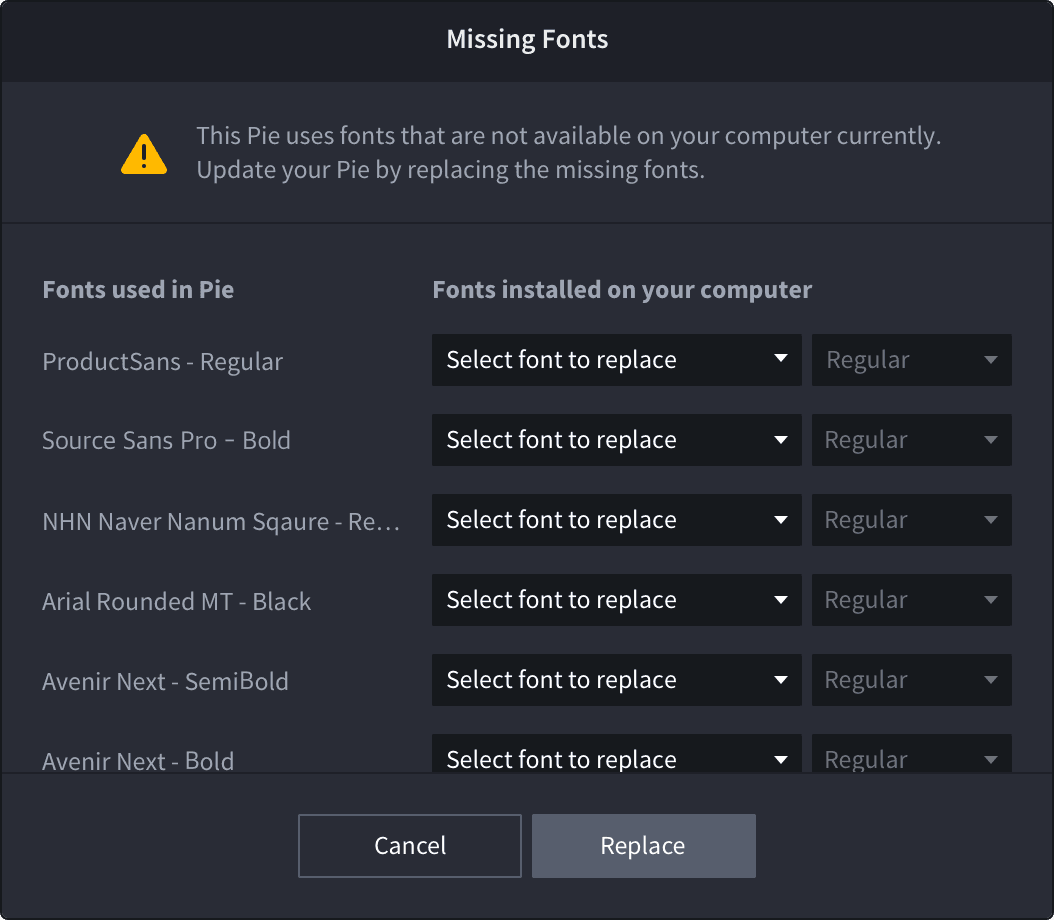
Missing Font
If a font is missing, a missing font warning will show. Select alternative fonts to replace the missing fonts.
Applying Custom Fonts to a Text Layer
Available in the Enterprise plan only.
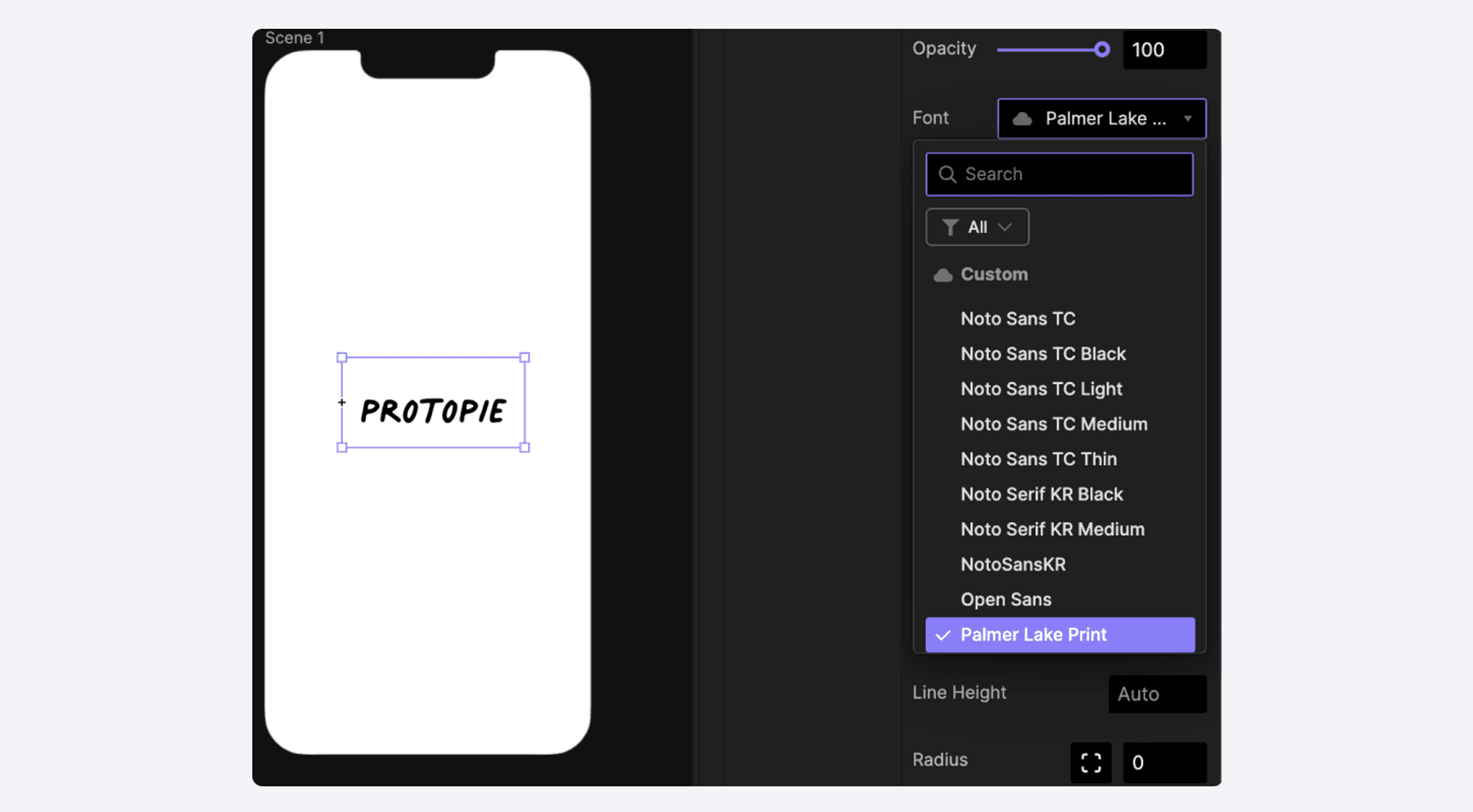
Editors can easily apply custom fonts to text layers in ProtoPie Studio by following these simple steps:
Select an editable text layer.
Access the Font menu located in the text layer's property panel.
Browse through the fonts list and select one of the custom fonts available within the “Custom” category. The list exclusively displays the custom fonts accessible within your enterprise team and/or organization.
The selected text layer will now be displayed with the chosen custom font.
Note: Only the team owner, team admins, and service admins can upload custom fonts.
Applying Custom Fonts to All Text Layers with the Same Font
Available in the Enterprise plan only.
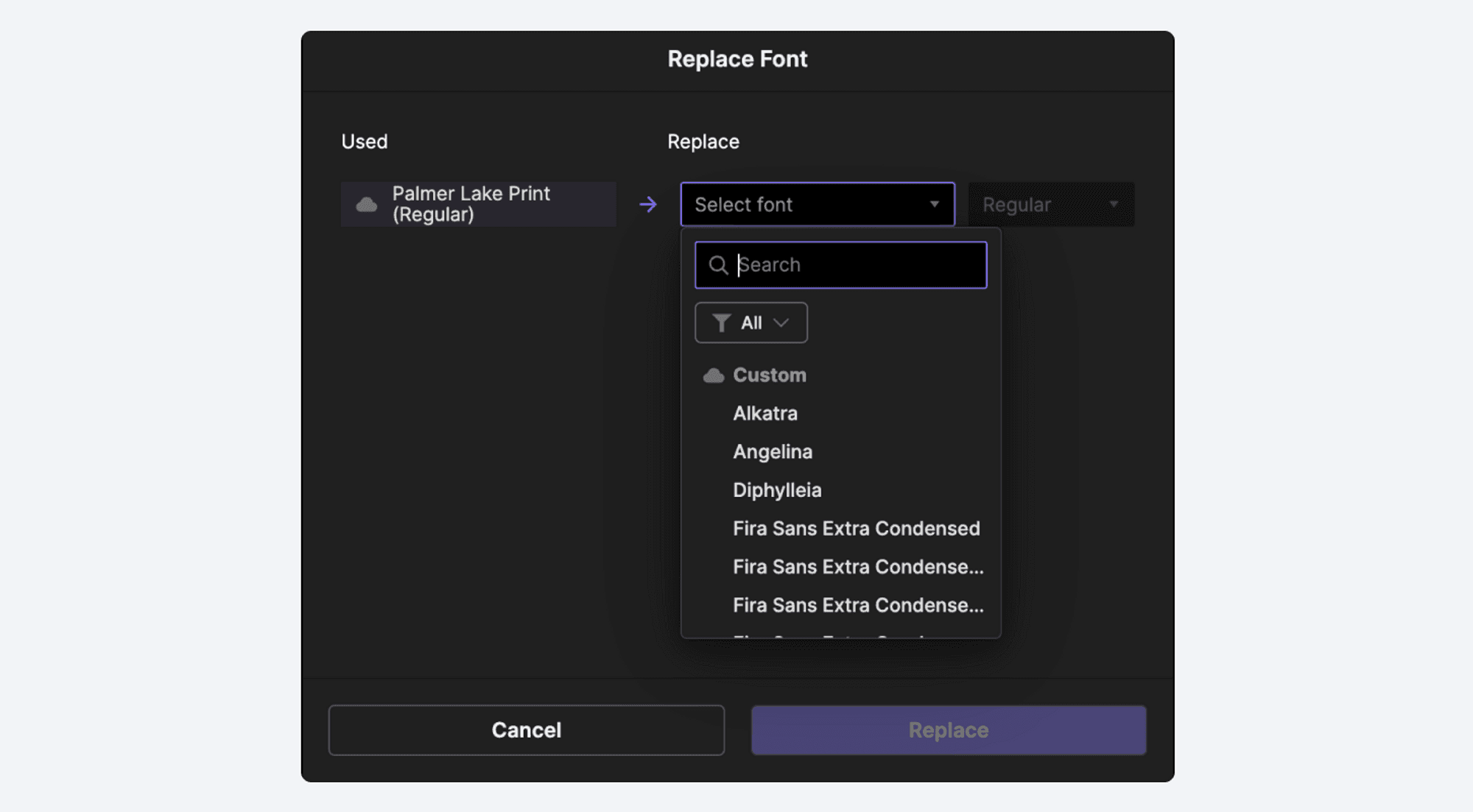
Editors can effortlessly apply custom fonts to all text layers that share the same font across all scenes in the prototype by following these steps:
Click on "Edit" in the top navigation menu.
Choose "Replace Fonts" from the options.
In the Replace Fonts modal, choose the font(s) you want to replace with a custom font.
Click on the “Replace” button.
The selected font(s) will be replaced with the chosen custom font(s) throughout the prototype.
Input Layer
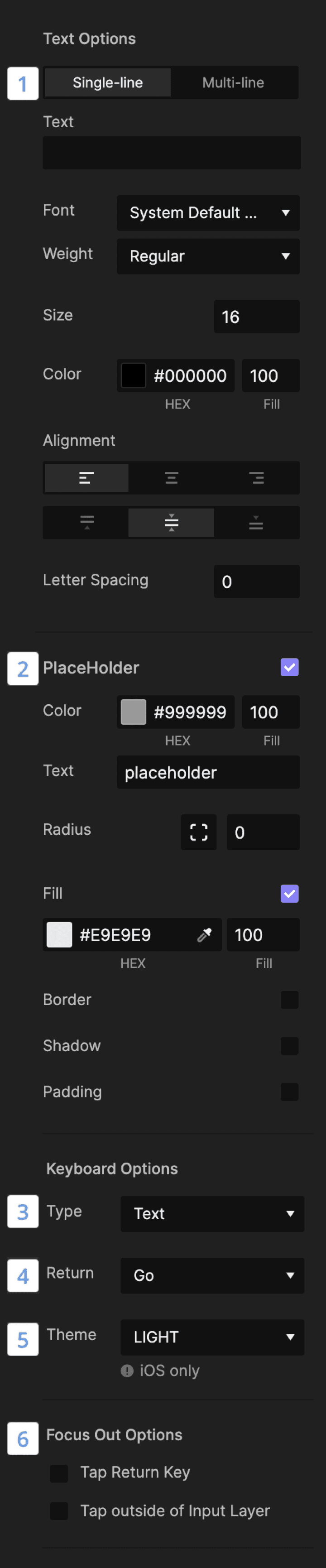
An input layer is used to enter single-line or multi-line text via a native keyboard on smart devices or a physical keyboard.
Background Blur Layer
The following blur effects are supported: three default effects (Dark, Light, and Extra Light) for Android and iOS and ten more blur effects for Web and iOS 13 and newer.
Constraints
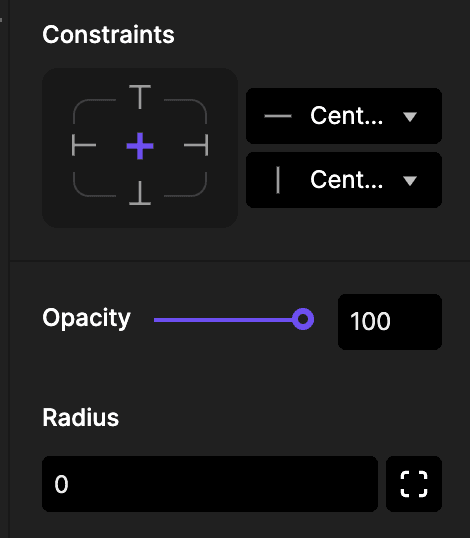
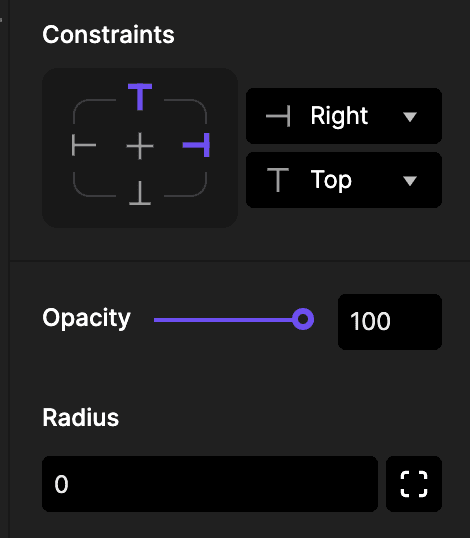
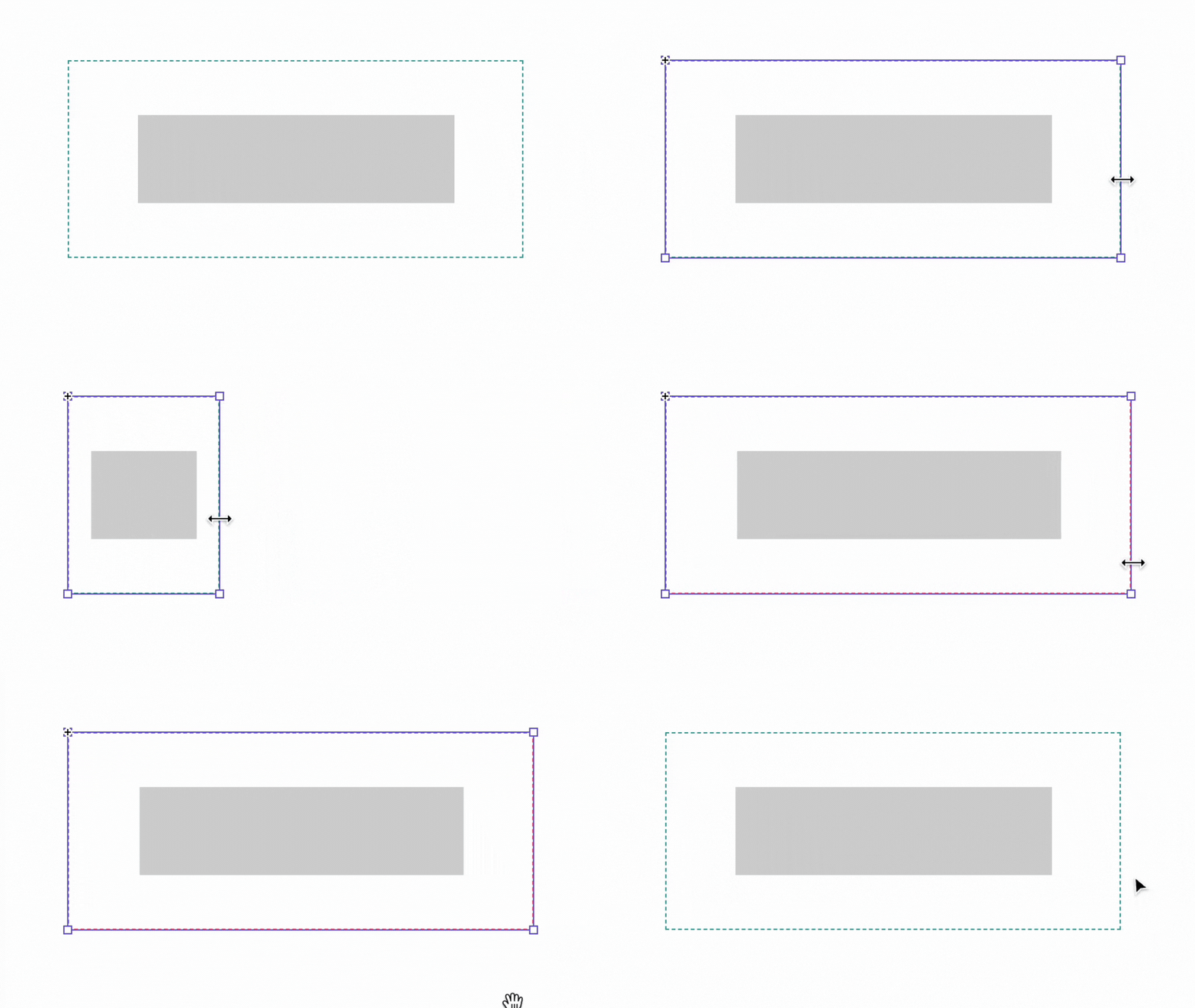
You can set constraints for layers. The size and position of child layers adjust automatically according to their constraints when the parent layer is resized manually or through a Response.
Pin to Top Right Corner
By setting a Right and Top constraint, the grey layer would maintain its position relative to the right and top sides of its parent layer. Additionally, if the parent layer is resized, the grey layer maintains its size.

Scale Spacing
By setting the Scale option for both width and height, the grey layer’s size and position adjust proportionally to changes in the parent layer’s size, maintaining the same scaling ratio as the parent.
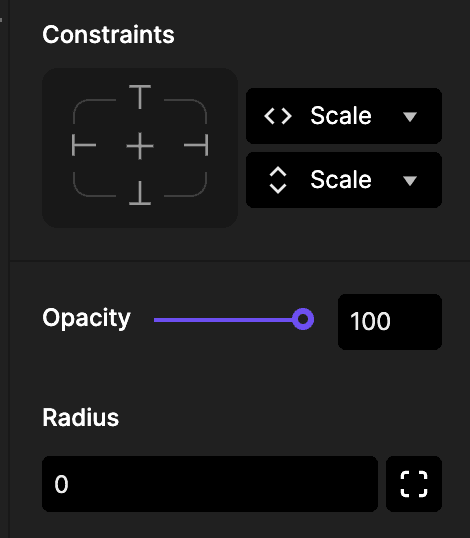
Fixed Spacing
By setting L+R in the width and T+B in the height, the grey layer would be resized maintaining the same spacing left and right when the parent layer's width is modified.

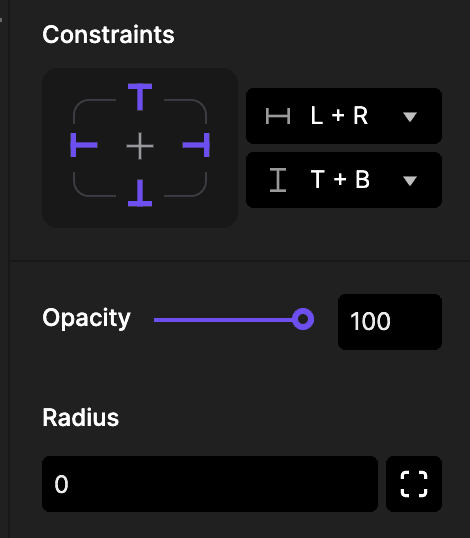
FAQs
does-protopie-support-alpha-masks
Does ProtoPie support alpha masks?
Although the alpha mask feature is not fully supported in ProtoPie, applying it in your designs is possible. You can export the gradient layer as a PNG and import it into ProtoPie Studio. To get a better understanding, check out the following examples:
supported-media-file-format
Which media file formats are supported?
Depending on your plan, you can import images from your local files or, for Enterprise users, from a self-hosted URL.
ProtoPie supports the following media formats:
Image: PNG, JPG, JPEG, BMP, GIF, SVG, and WebP.
Video: MP4 (H.264), WebM, and MOV files up to 100 MB.
Lottie: ProtoPie does not support Lottie files that use expressions.
An error message will be displayed if you attempt to use an unsupported media file format. Please consult the error code explanation below to understand the supported media file formats.
E001: Ensure the URL you entered for the media file has the correct content type.
E002: The media type you're trying to use is incompatible; please choose a supported one.
E100: Ensure the URL you entered for the media file is correct and accessible online.
E101: The file format '.lottie' (Dot Lottie) is unsupported. Choose a different Lottie file format.
E102: If you encounter a timeout error while loading a Lottie animation, try again later.
E103: Ensure your Lottie JSON file includes the required properties: layer, ip, op, fr, w, and h.
E104: If you face a Lottie load error, check if the Lottie file is valid and not corrupted.
E105: Lottie assets should use URLs or online resources, not local paths.
E106: Review your Lottie JSON file to ensure it's not empty and adheres to the proper JSON format for Lottie.
E200: Ensure the HLS URL you entered is accurate and accessible.
E201: Verify that your video source URL is accessible and correct.
E202: Use MP4 (H.264), WebM, and MOV files up to 100 MB.
E203: The video codec used is not supported.
E300: ProtoPie only supports audio file formats like WAV, MP3, and M4A.
E301: If you experience an audio loading error, ensure the audio file is not corrupted and in a supported format.
E400: The image has failed to load. Please check and try again.
E500: This file format is not supported; please choose a supported one.
E501: There may be an issue with the file. Please check and try again.
E600: Ensure that your audio source URL is valid and accessible.
supported-self-hosted-url-format
Which self-hosted URL formats are supported?
We don't impose any specific restrictions on URL formats. If the URL functions on your website and you host it as a self-server, it should work without any issues.
However, if the media fails to load, it might be due to CORS (Cross-Origin Resource Sharing) restrictions. Ensure your hosting server allows requests from external domains by setting appropriate CORS headers.