In ProtoPie, a Trigger is an event that triggers specific actions, called Responses, in your prototype.
A touch trigger involves actually touching the display of a smart device. It can be, for example, a Tap, Long Press, or Drag action. Multi-touch gestures, such as Pinch and Rotate, are also supported.
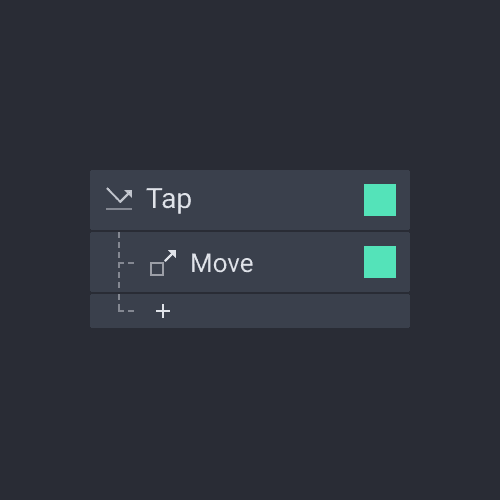
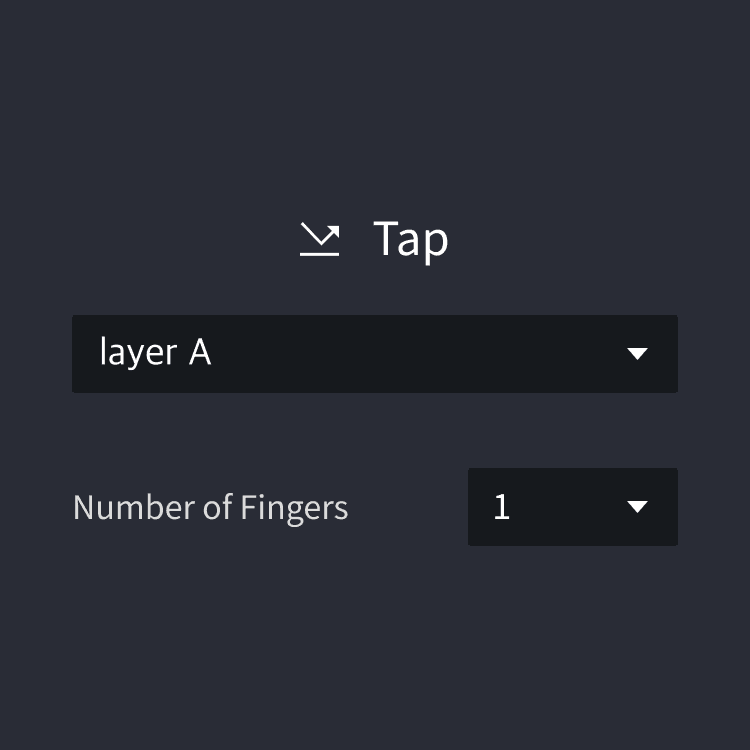
An action where the tip of a finger touches the touchscreen and is raised immediately.
Number of Fingers
Up to five fingers supported
Number of Fingers
Up to five fingers supported
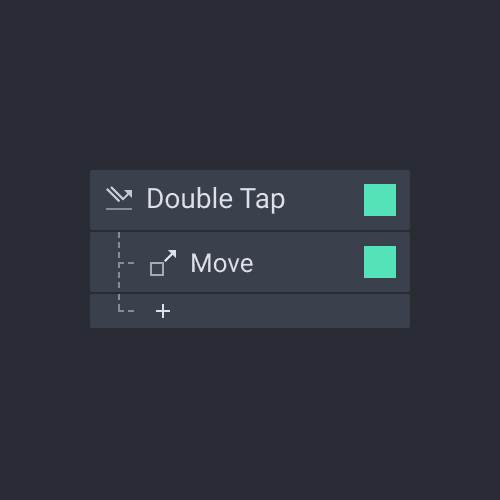
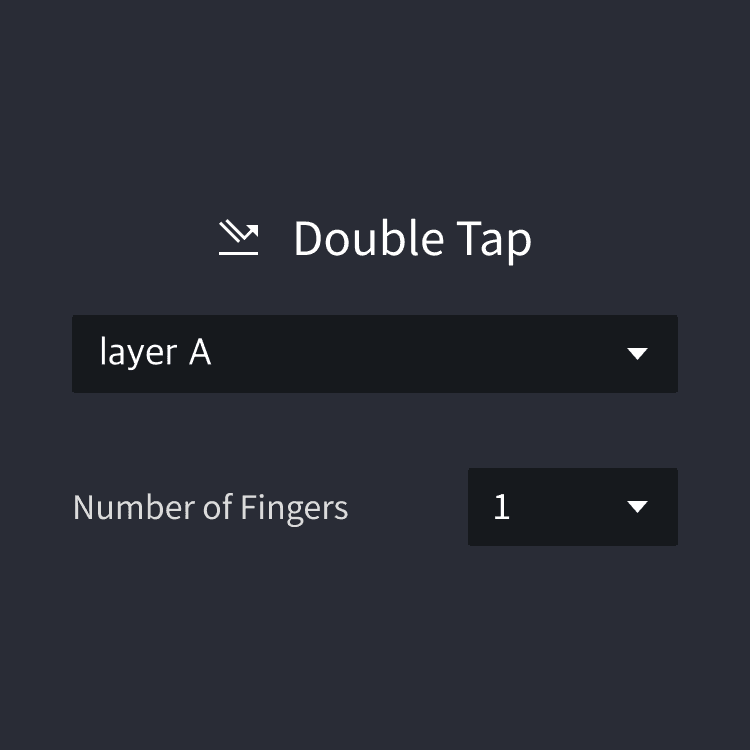
An action where the tip of a finger touches the touchscreen twice rapidly.
Number of Fingers
Up to five fingers supported
Number of Fingers
Up to five fingers supported
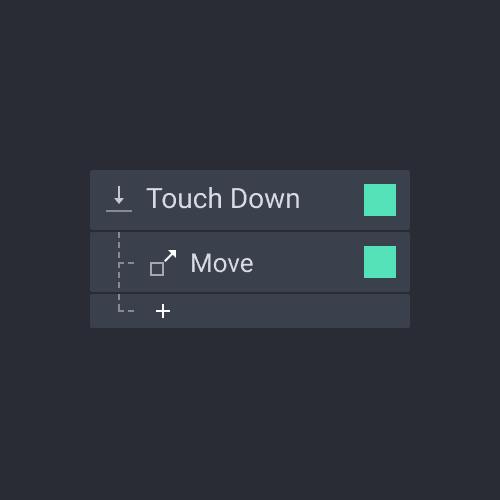
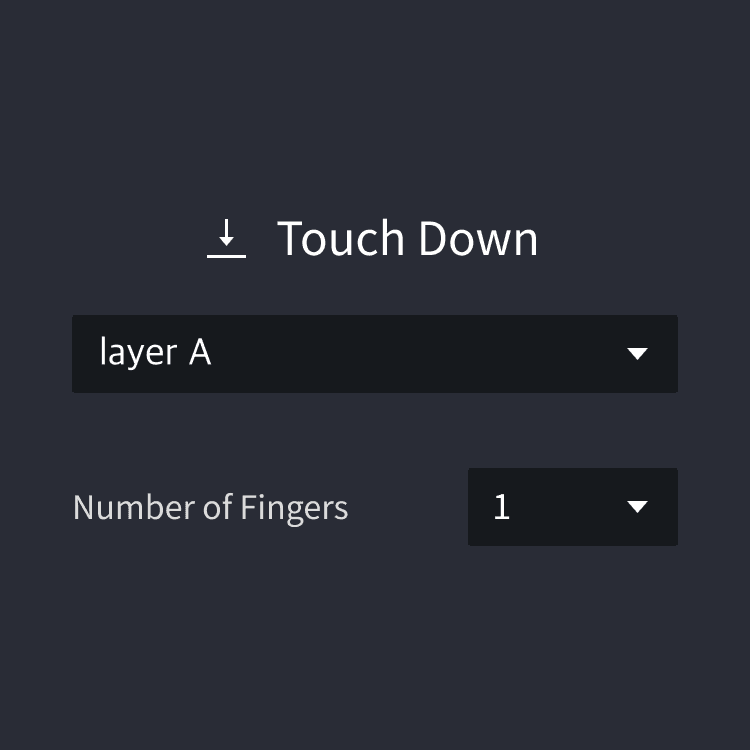
An action where the tip of a finger touches the touchscreen.
Number of Fingers
Up to five fingers supported
Number of Fingers
Up to five fingers supported
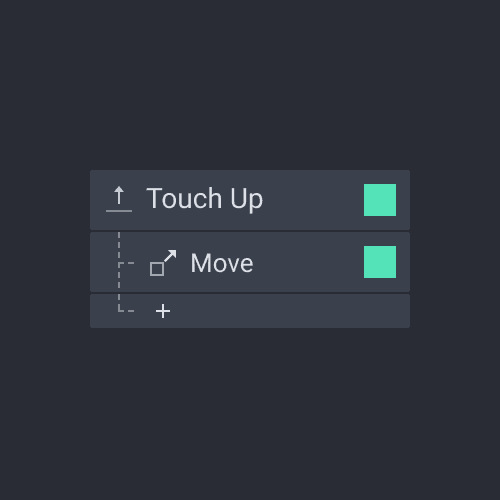
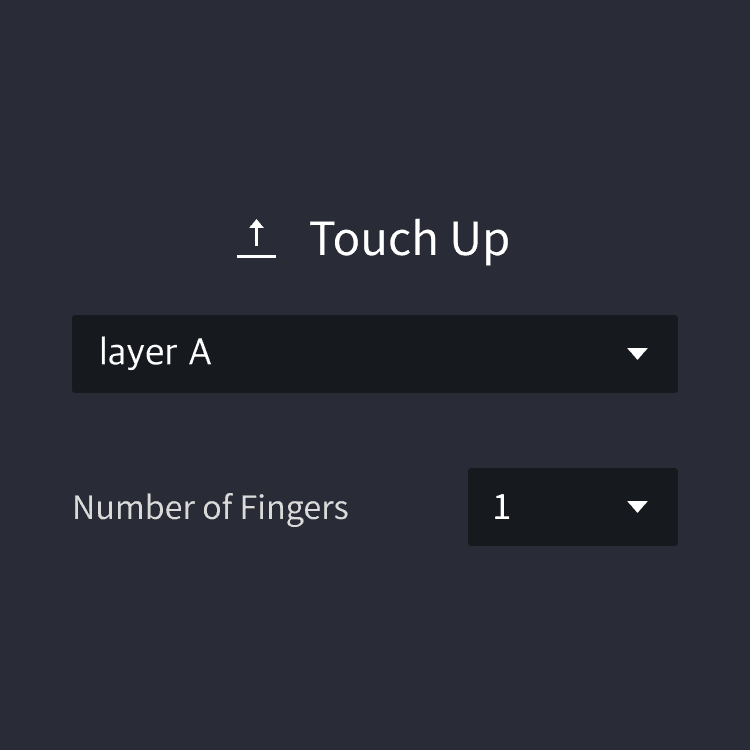
A response is triggered as soon as a user releases a layer. For example, it can be used in combination with drag to initiate an interaction when a user drags and releases a layer.
Number of Fingers
Up to five fingers supported
Number of Fingers
Up to five fingers supported
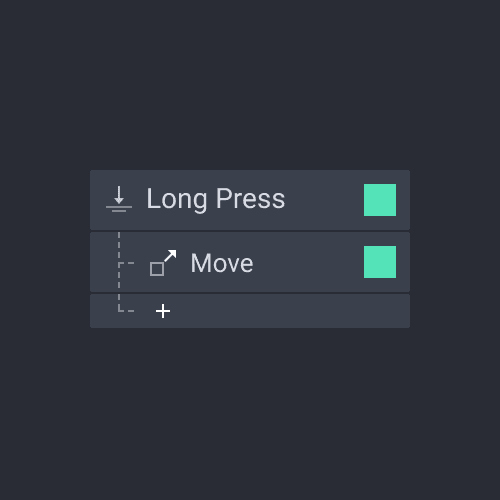
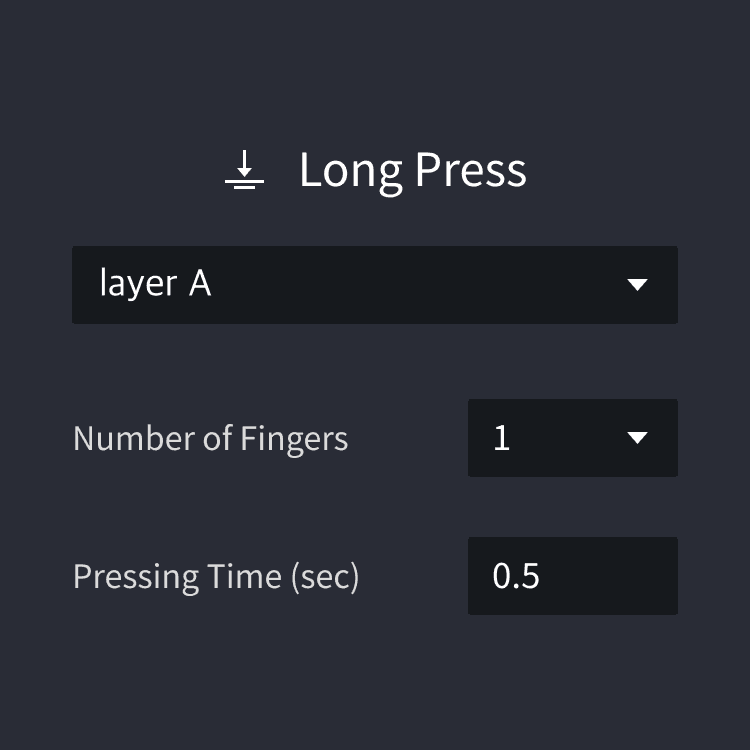
An action where the tip of a finger is raised after a certain amount of time touching the touchscreen.
Number of Fingers
Up to five fingers supported
Pressing Time
The amount of time during which a finger touches a screen
Number of Fingers
Up to five fingers supported
Pressing Time
The amount of time during which a finger touches a screen
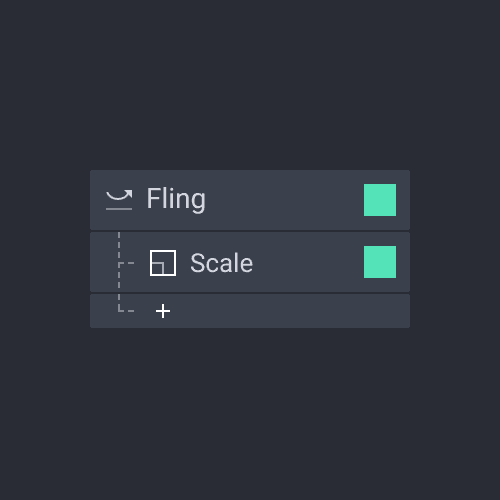
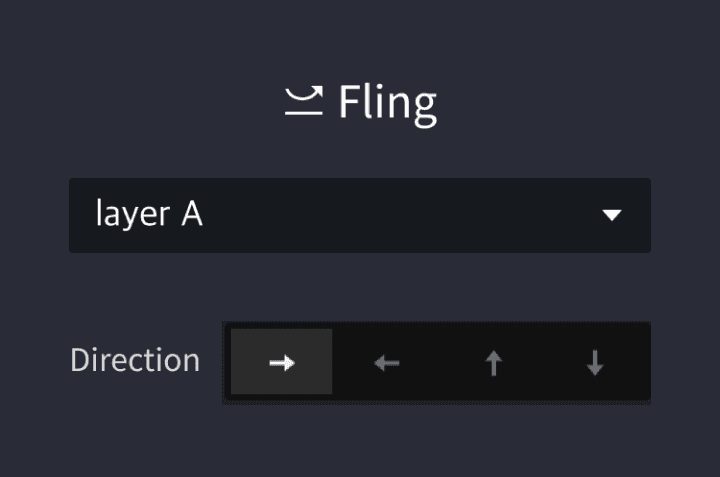
A response is triggered when a layer is swiped across the chosen direction, at a speed faster than the default speed.
Direction
The region towards which the finger moves
Direction
The region towards which the finger moves
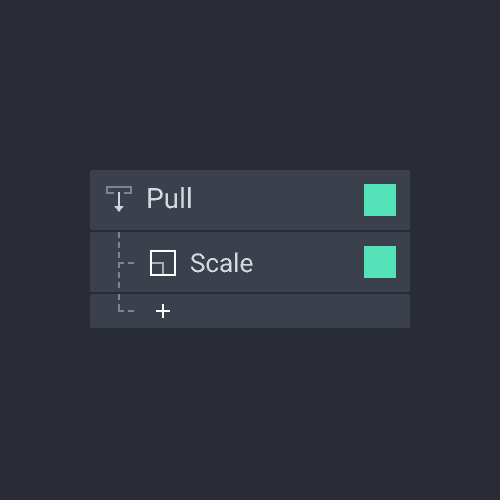
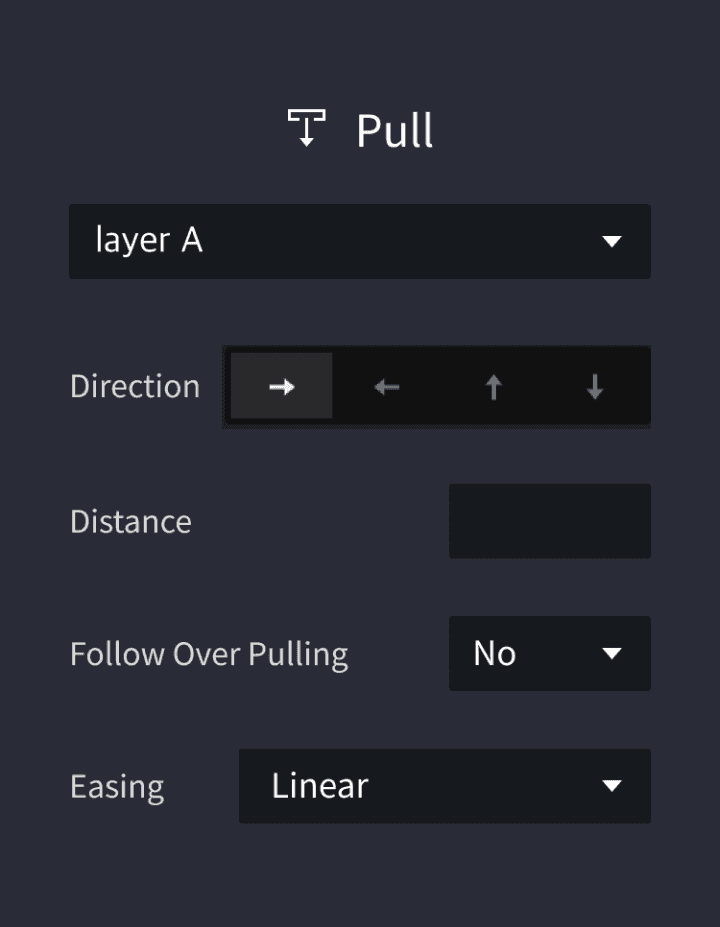
Pull is a trigger with true/false properties. If the target layer is pulled past a certain point, the layer moves according to the distance set by the user in the trigger's property panel. If the conditions aren’t met, the layer returns to its original position.
Direction
The region towards which the finger moves
Distance
The amount of space a layer moves
Follow Over Pulling
A reaction that takes place when a finger moves beyond a preset region
Easing
Change of acceleration of layer movement
Direction
The region towards which the finger moves
Distance
The amount of space a layer moves
Follow Over Pulling
A reaction that takes place when a finger moves beyond a preset region
Easing
Change of acceleration of layer movement
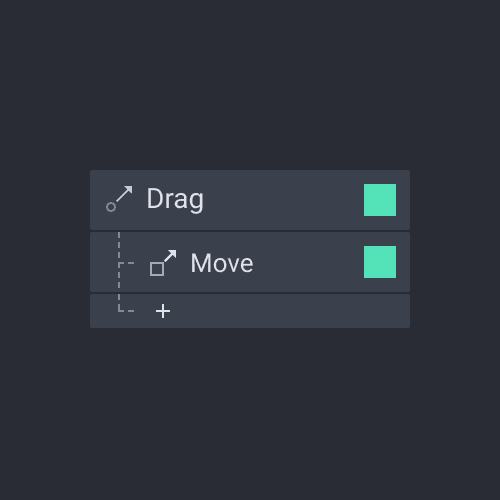
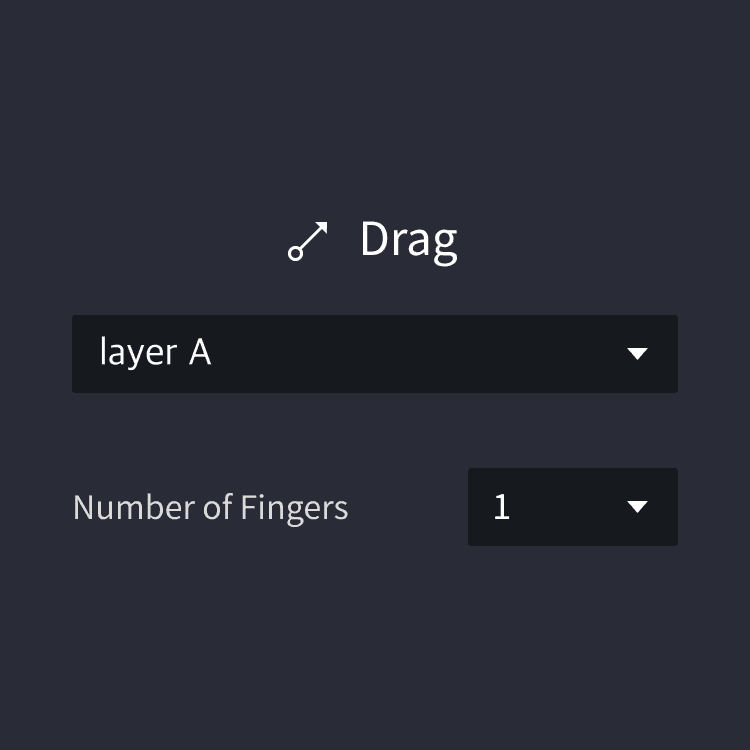
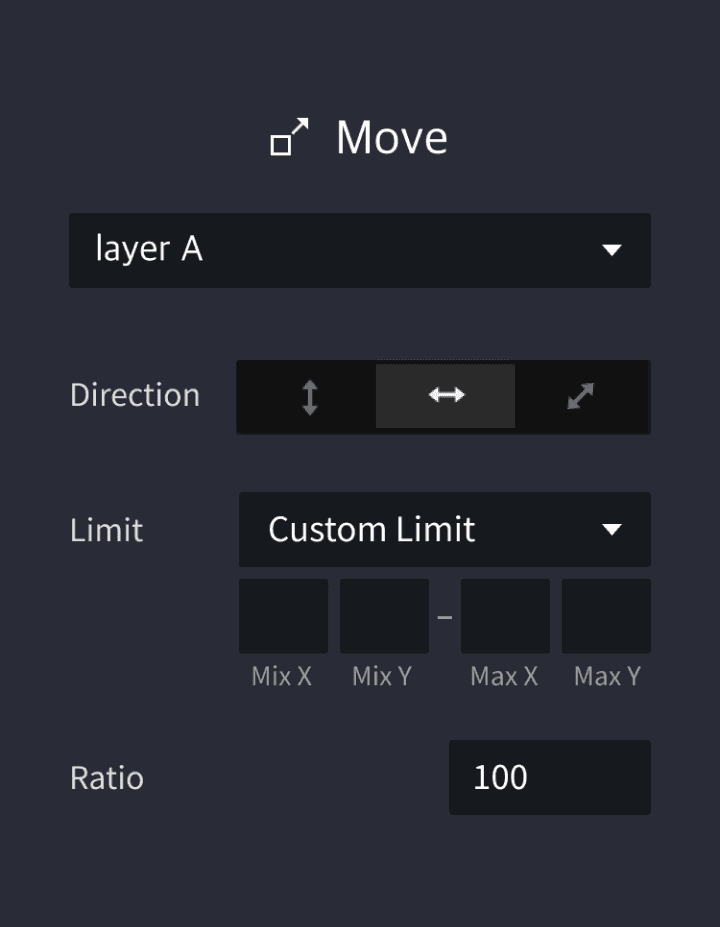
An action where the tip of a finger moves across the screen while touching the touchscreen.
Number of Fingers
Up to five fingers supported
Number of Fingers
Up to five fingers supported
Direction
The area towards which a layer moves
Limit
The minimum and maximum values under which a layer can move
Ratio
The ratio between the distance a layer is dragged and the distance a finger moves on the screen. When the value is set to 100, the two distance values are equal in other words, a layer covers the same distance a finger moves. When the value is higher, the layer moves farther compared to the finger, and vice versa
Direction
The area towards which a layer moves
Limit
The minimum and maximum values under which a layer can move
Ratio
The ratio between the distance a layer is dragged and the distance a finger moves on the screen. When the value is set to 100, the two distance values are equal in other words, a layer covers the same distance a finger moves. When the value is higher, the layer moves farther compared to the finger, and vice versa
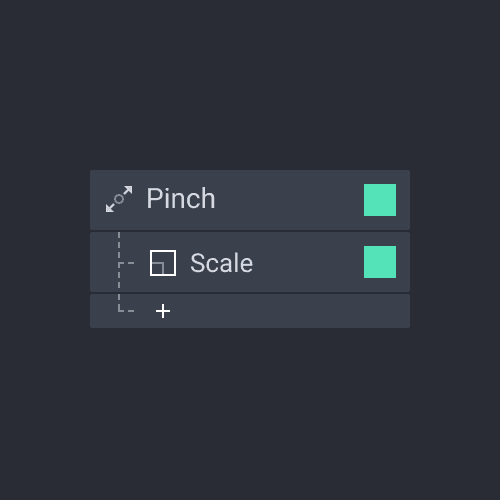
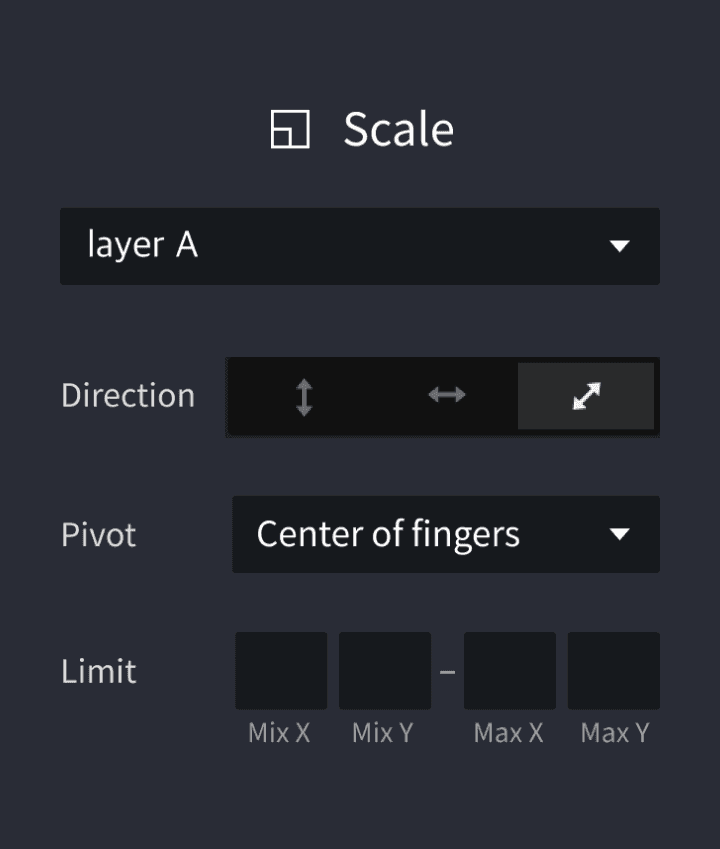
An action where two fingers pull away from or come toward each other while touching the touchscreen.
Direction
The area towards which a layer moves
Pivot
The reference point from which a layer undergoes rotation or resizing
Limit
The minimum and maximum values under which a layer can move
Direction
The area towards which a layer moves
Pivot
The reference point from which a layer undergoes rotation or resizing
Limit
The minimum and maximum values under which a layer can move
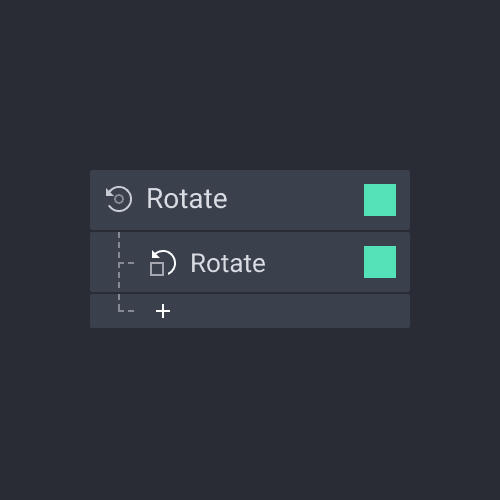
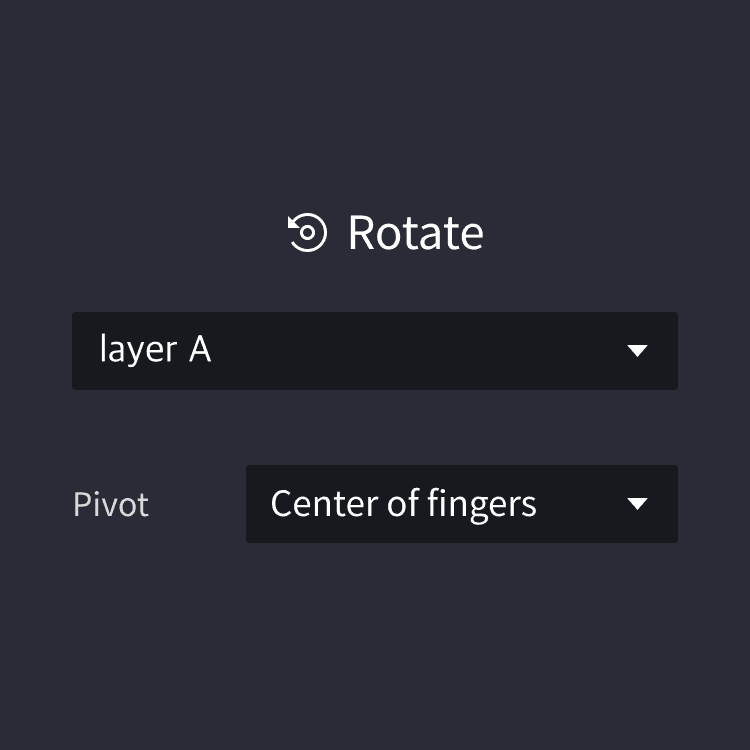
An action where two fingers turn in the same direction while touching the touchscreen.
Pivot
The reference point from which a layer undergoes rotation or resizing
Pivot
The reference point from which a layer undergoes rotation or resizing
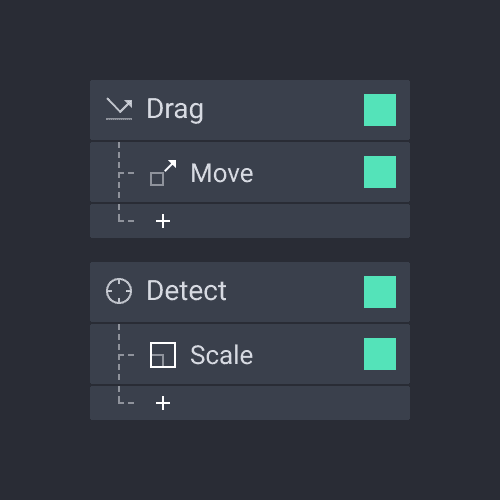
As the name implies, conditional triggers activate Interactions based on specific conditions.
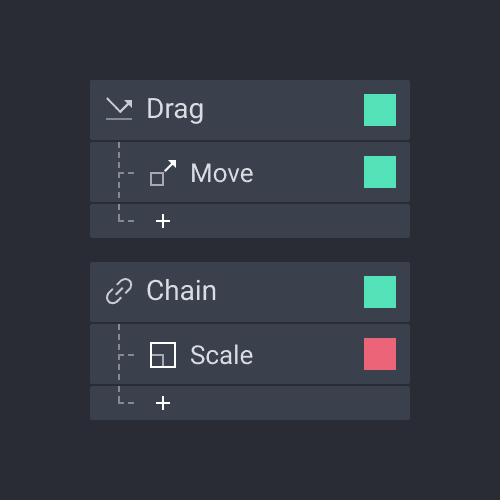
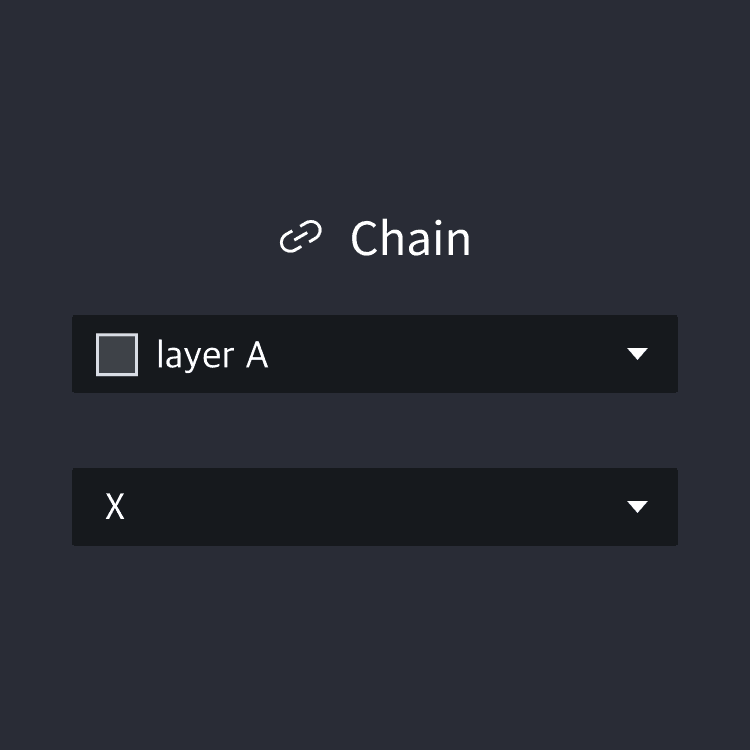
An action where the changes of a property of one layer changes the property of another layer.
Property
Layer attribute values as a reference for changing other layers
Property
Layer attribute values as a reference for changing other layers
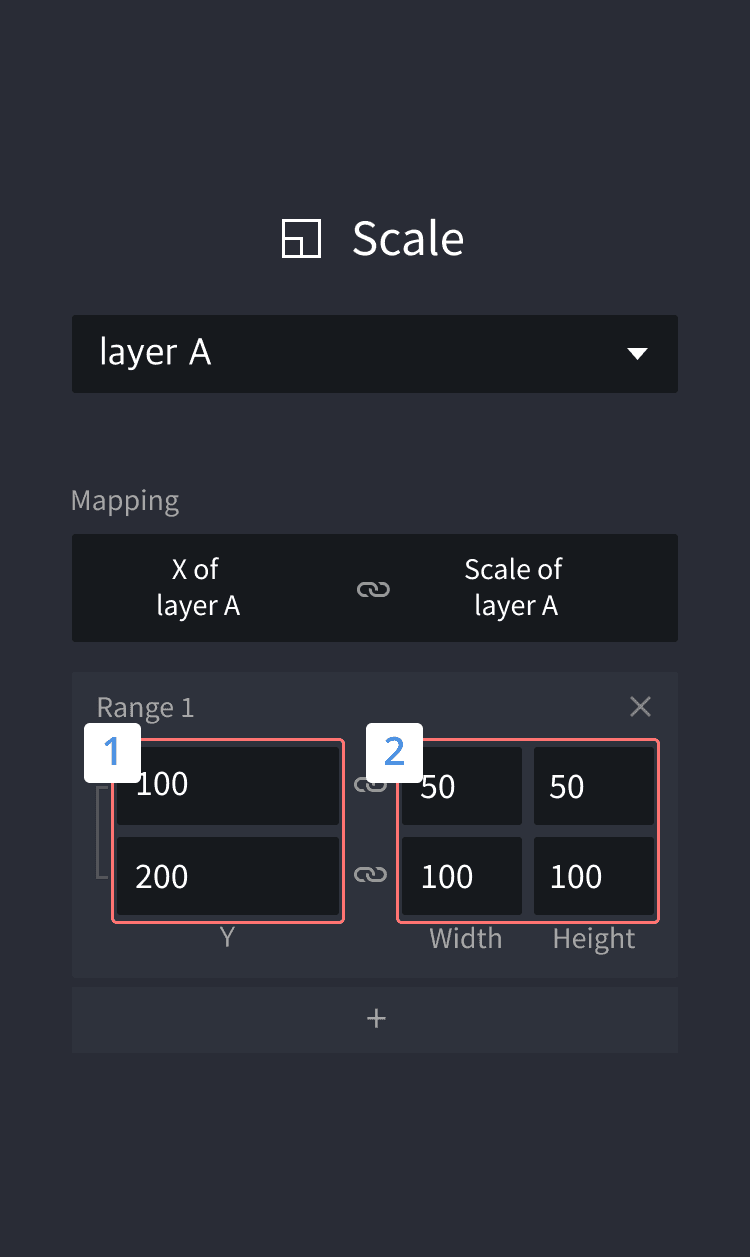
Trigger’s Layer Mapping Range 1
A movement range for a chain’s target layer
Response’s Layer Mapping Range 2
The range of values for a layer that will move within the movement range for a chain’s target layer
Trigger’s Layer Mapping Range 1
A movement range for a chain’s target layer
Response’s Layer Mapping Range 2
The range of values for a layer that will move within the movement range for a chain’s target layer
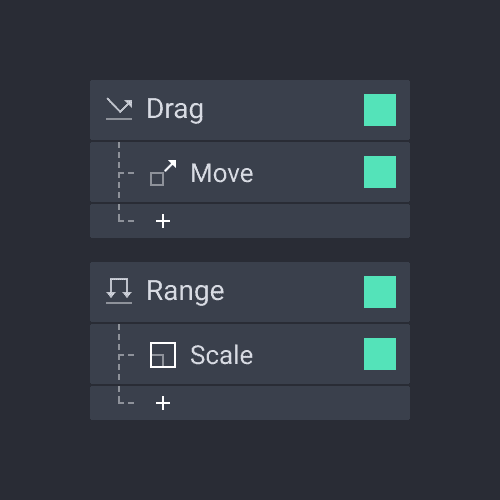
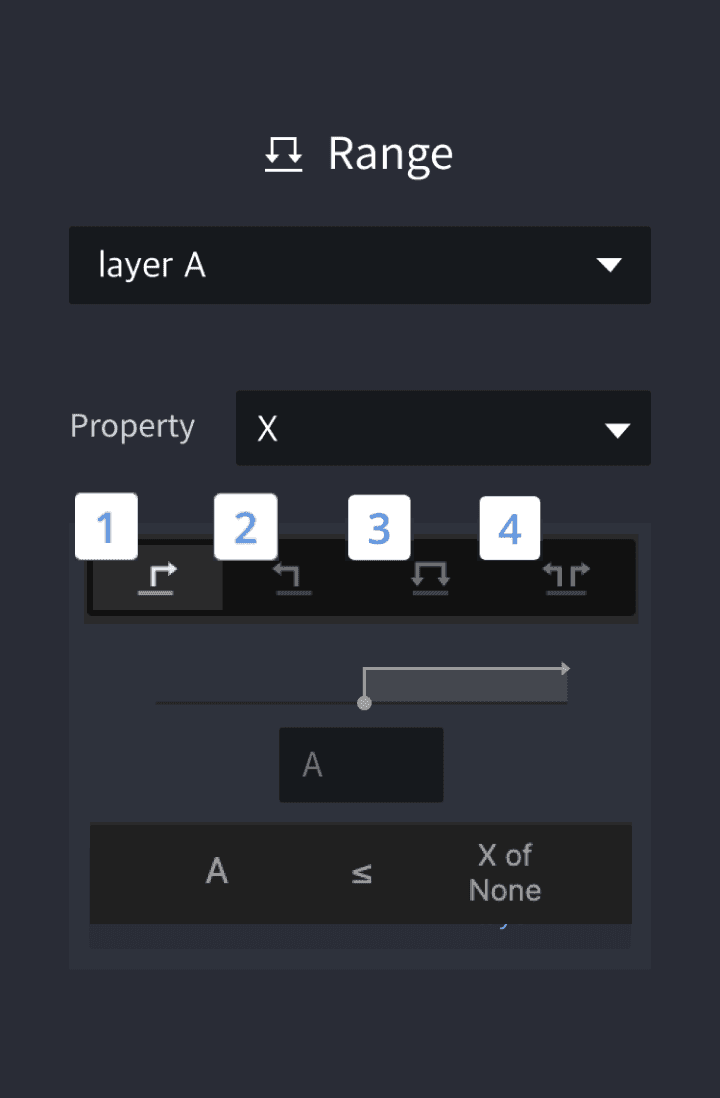
The Range trigger fires when an object’s property or variable transitions into a range (hence the name) you define. This trigger will only fire once as the property transitions into the range. For example, you might define a Range trigger that fires when the x property of an object becomes 200 pixels or greater. The trigger will fire once as the object transitions from 199 to 200. This won’t fire again as the x property remains 200 or greater, and it won’t fire when the property drops below 200 (e.g., 200 to 199). However, it will fire again if the property once again transitions from 199 to 200.
1. Greater than or equal to
When a target layer’s value reaches a certain value
2. Less than or equal to
When a target layer falls under a certain value
3. Between
When a target layer’s value lies between two certain values
4. Not between
When a target layer’s value is outside the range between two certain values
1. Greater than or equal to
When a target layer’s value reaches a certain value
2. Less than or equal to
When a target layer falls under a certain value
3. Between
When a target layer’s value lies between two certain values
4. Not between
When a target layer’s value is outside the range between two certain values
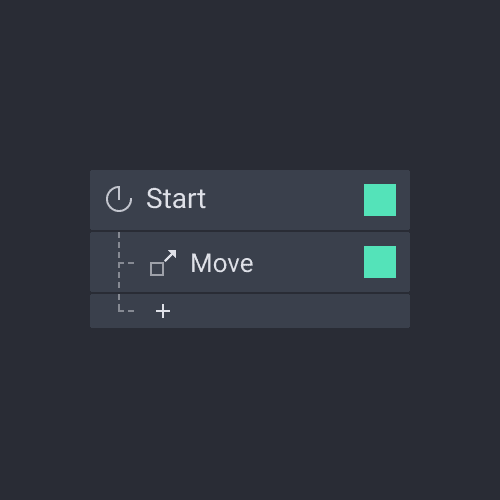
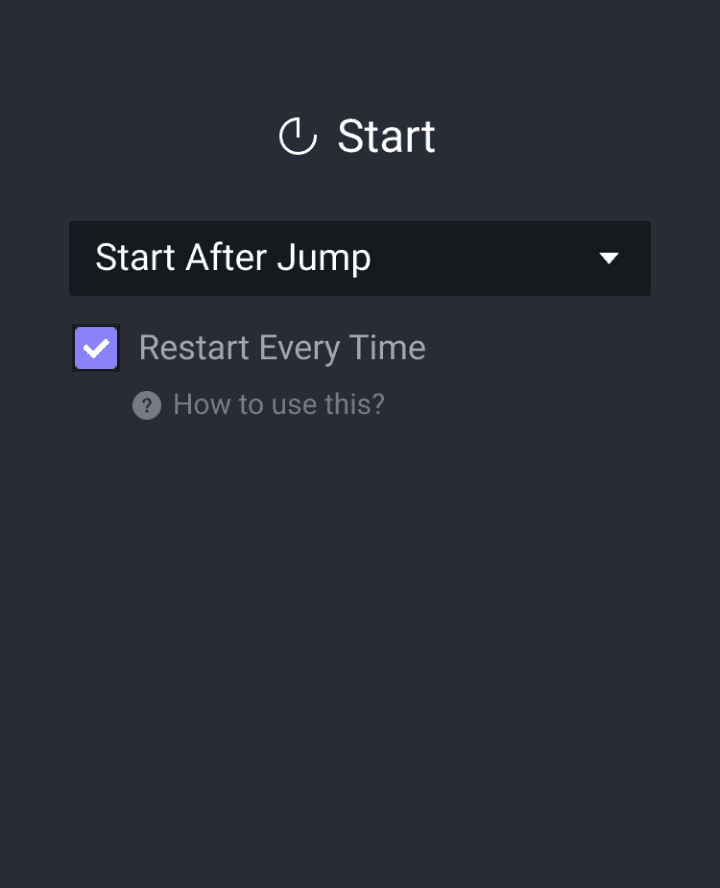
Start allows you to activate interactions upon loading a certain scene.
Start After Jump
Start activates right after a Jump response is executed.
Start With Jump
Start activates together with the Jump response.
Restart Every Time
Start activates every time the active scene is loaded.
Start After Jump
Start activates right after a Jump response is executed.
Start With Jump
Start activates together with the Jump response.
Restart Every Time
Start activates every time the active scene is loaded.
A response is activated when a layer property or variable changes.
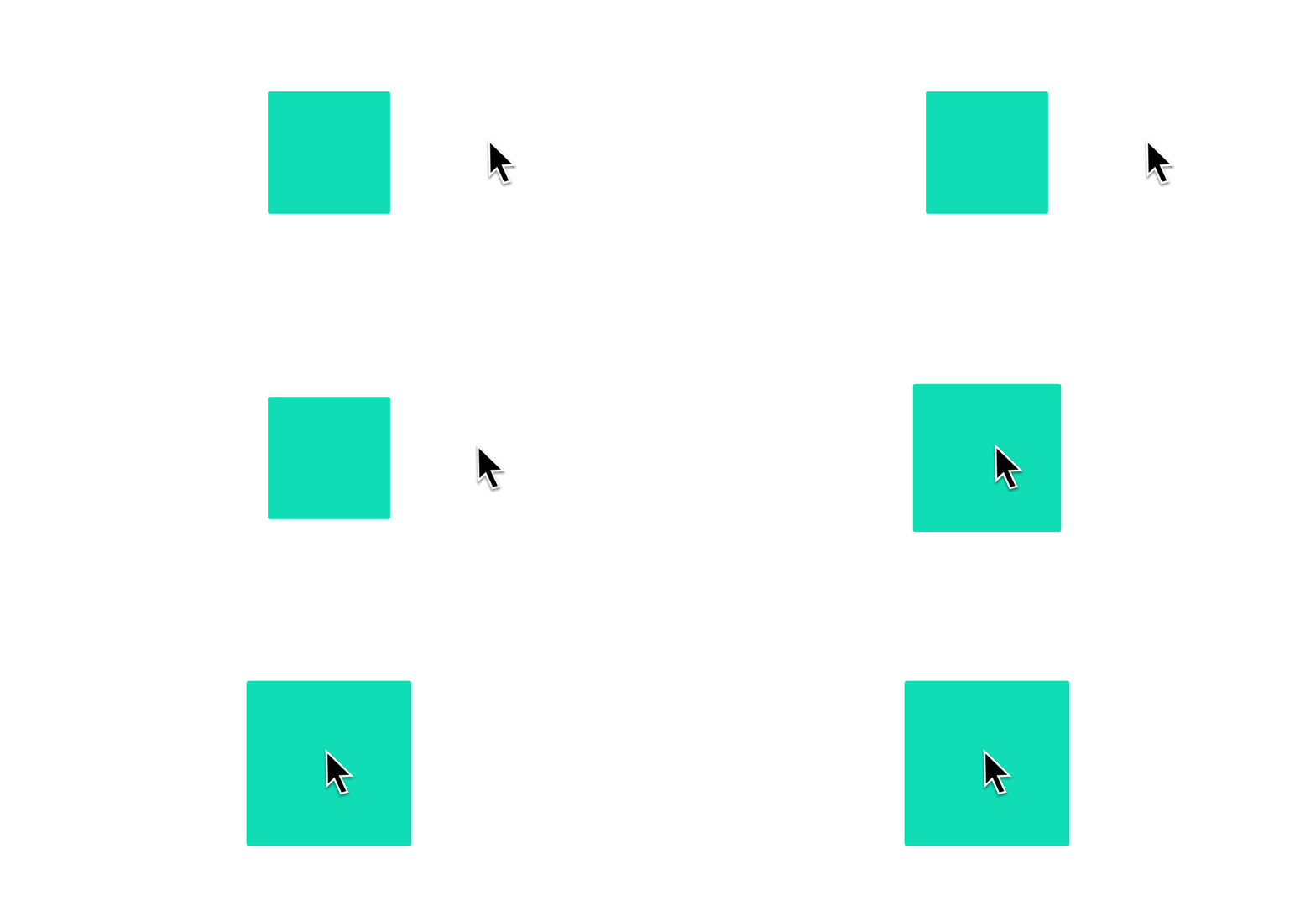
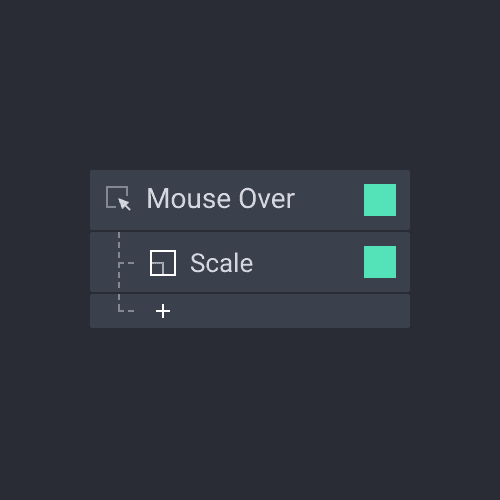
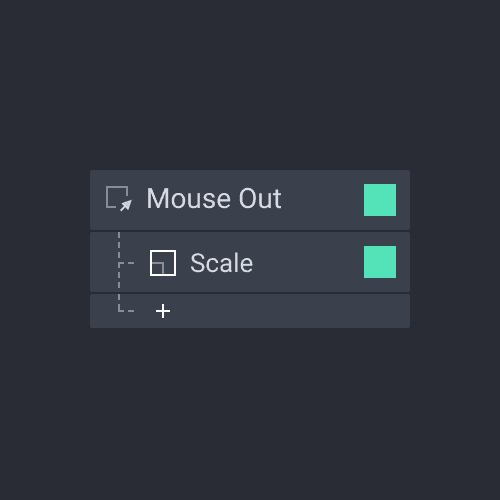
Mouse triggers activate based on the movement of a computer mouse. They allow you to create interactions based on the cursor hovering over or leaving an object.
A response is triggered when the mouse pointer moves over an object.
A response is triggered when the mouse pointer moves away from an object.
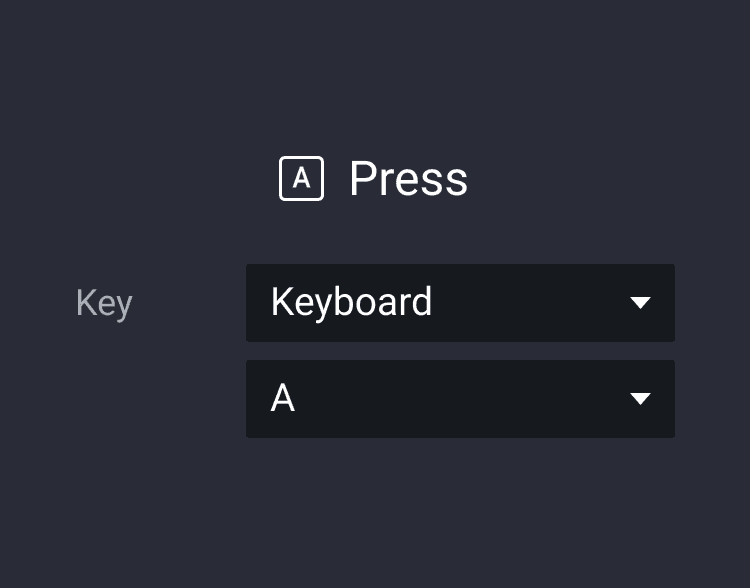
A response is activated when a key on a physical keyboard or an Android device is pressed.
Keyboard
The following keys are supported: letters, numbers, arrow keys, ESC, TAB, SPACE, and BACKSPACE.
Android
The back button as well as the volume buttons can be selected.
Keyboard
The following keys are supported: letters, numbers, arrow keys, ESC, TAB, SPACE, and BACKSPACE.
Android
The back button as well as the volume buttons can be selected.
The input trigger must be used with an input layer.
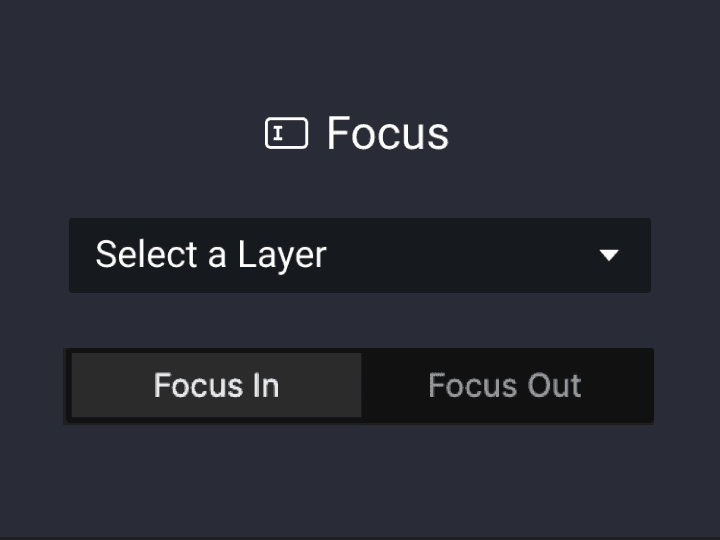
A response is activated upon an input layer receiving or losing focus. A Focus In event implies that the blinking placeholder is visible in the input layer, or that the native keyboard appears if a smart device is used. A Focus Out is simply the opposite.
Focus In
A response is activated in case of a focus in.
Focus Out
A response is activated in case of a focus out.
Focus In
A response is activated in case of a focus in.
Focus Out
A response is activated in case of a focus out.
A response is activated upon pressing the return key on a physical keyboard, or a native keyboard if a smart device is used.
Sensor triggers enable accessing specific native sensors in smart devices and mapping responses onto their properties.
Smoothness
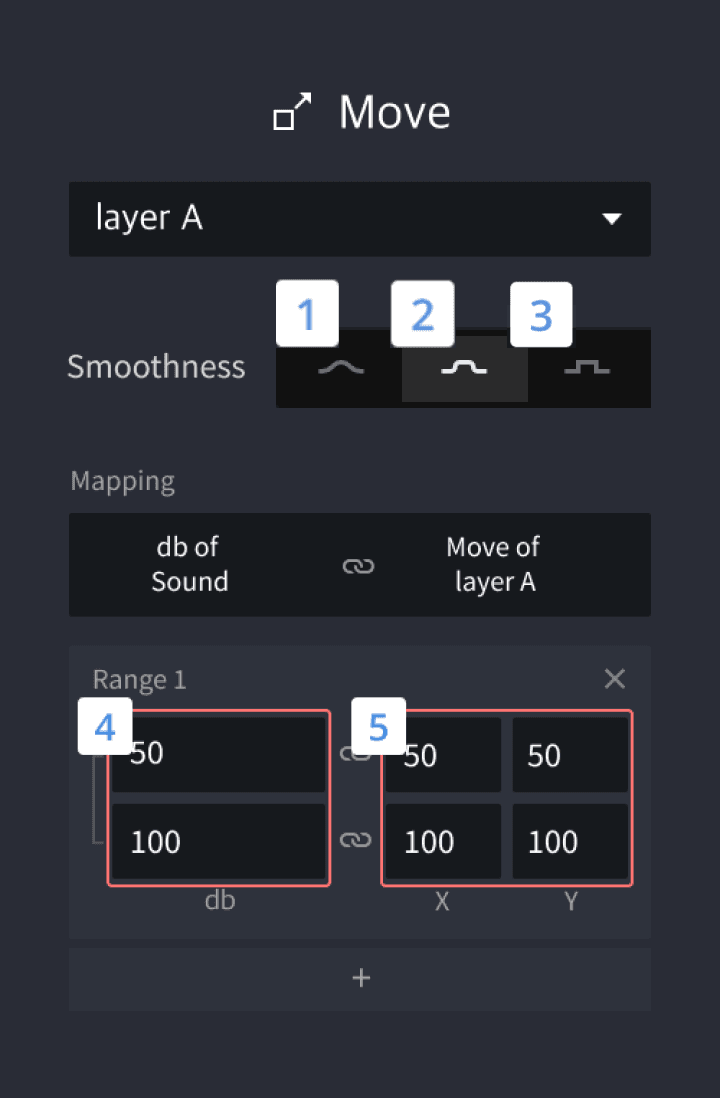
It's used to smoothen the layer movements mapped to specific sensor values. Three smoothness levels are available, from lowest (1) to highest (3)
Mapping Range - Device's Sensor 4
The range of the sensor's values
Mapping Range - Response's Layer 5
The range of the layer's properties mapped to the sensor values
Smoothness
It's used to smoothen the layer movements mapped to specific sensor values. Three smoothness levels are available, from lowest (1) to highest (3)
Mapping Range - Device's Sensor 4
The range of the sensor's values
Mapping Range - Response's Layer 5
The range of the layer's properties mapped to the sensor values
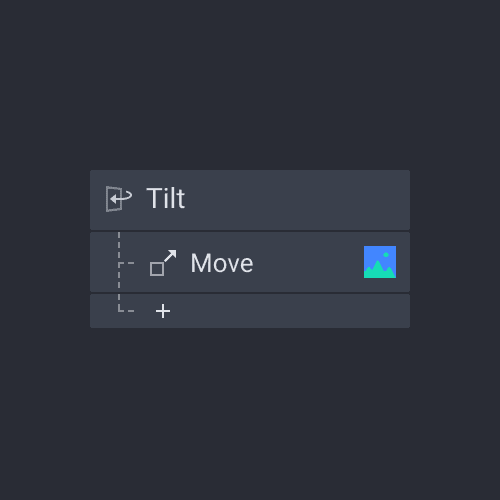
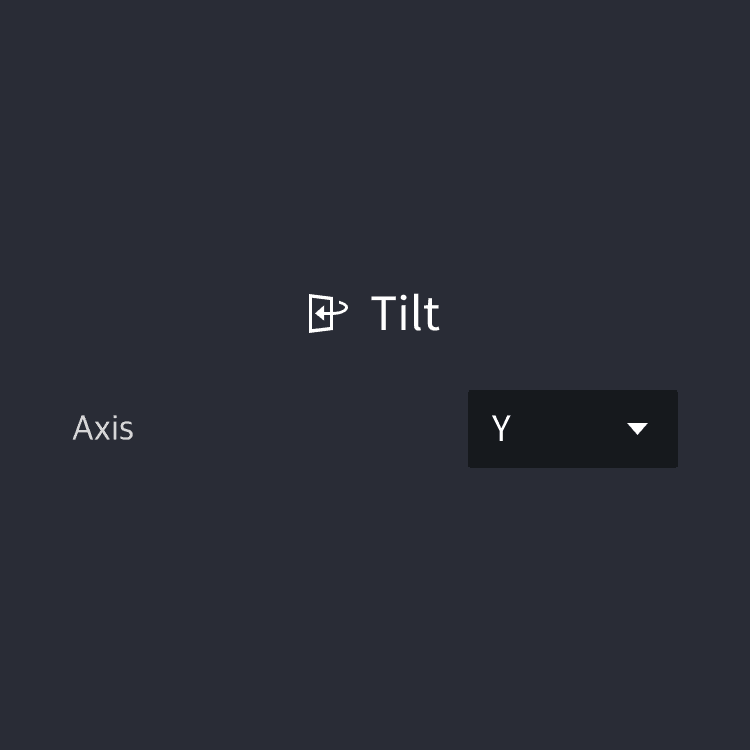
A response is activated upon a smart device reaching specific tilting angles.
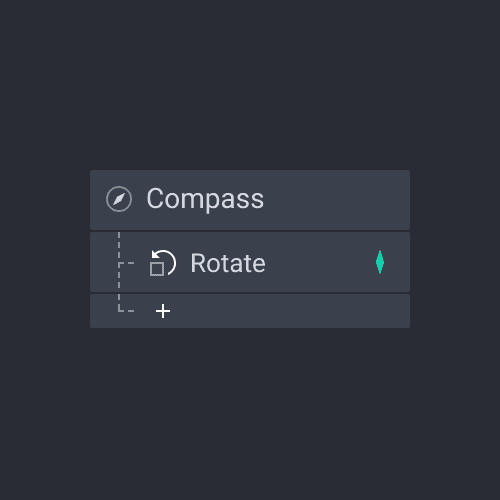
A response is activated based on the direction the smart device is pointing towards.
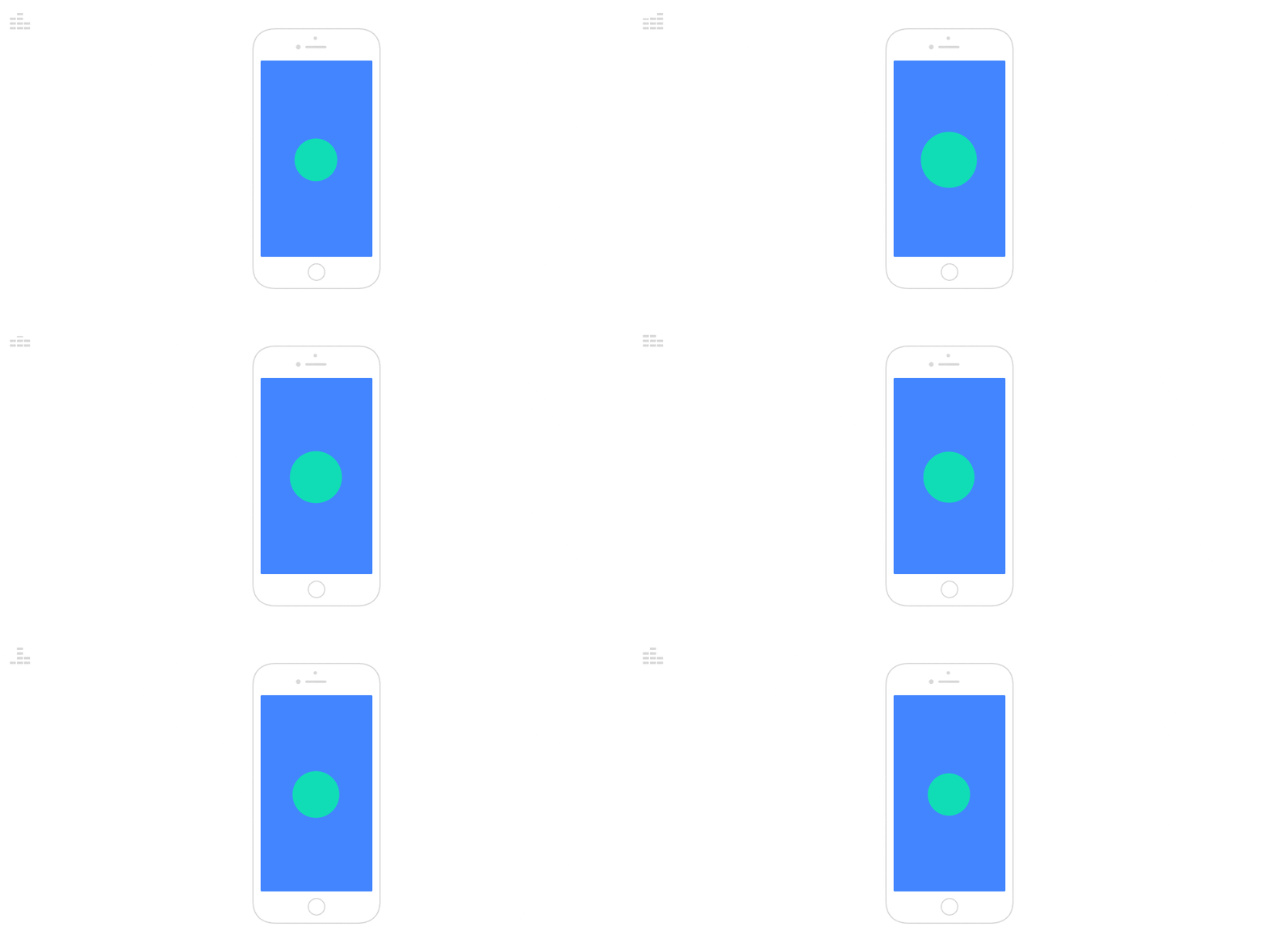
For example, to create a realistic compass prototype like this one, Compass is used with the Rotate response. The movement of the needle (Angle) is then determined by the detected compass angle (Degree), a value between 0 and 360, and the set rotation direction (clockwise/ counterclockwise).
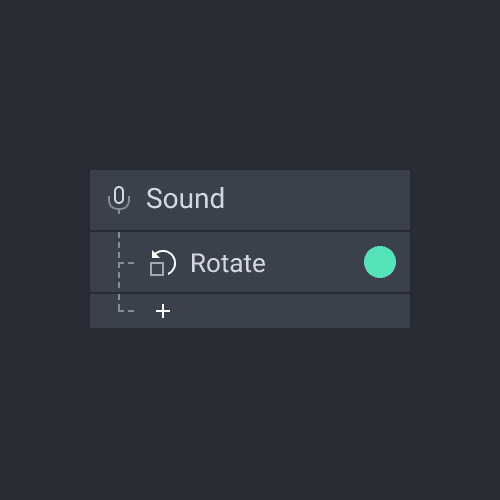
A response is activated based on the volume of a detected sound.
Learn how to use this trigger is used in the Mobile Game prototyping masterclass.
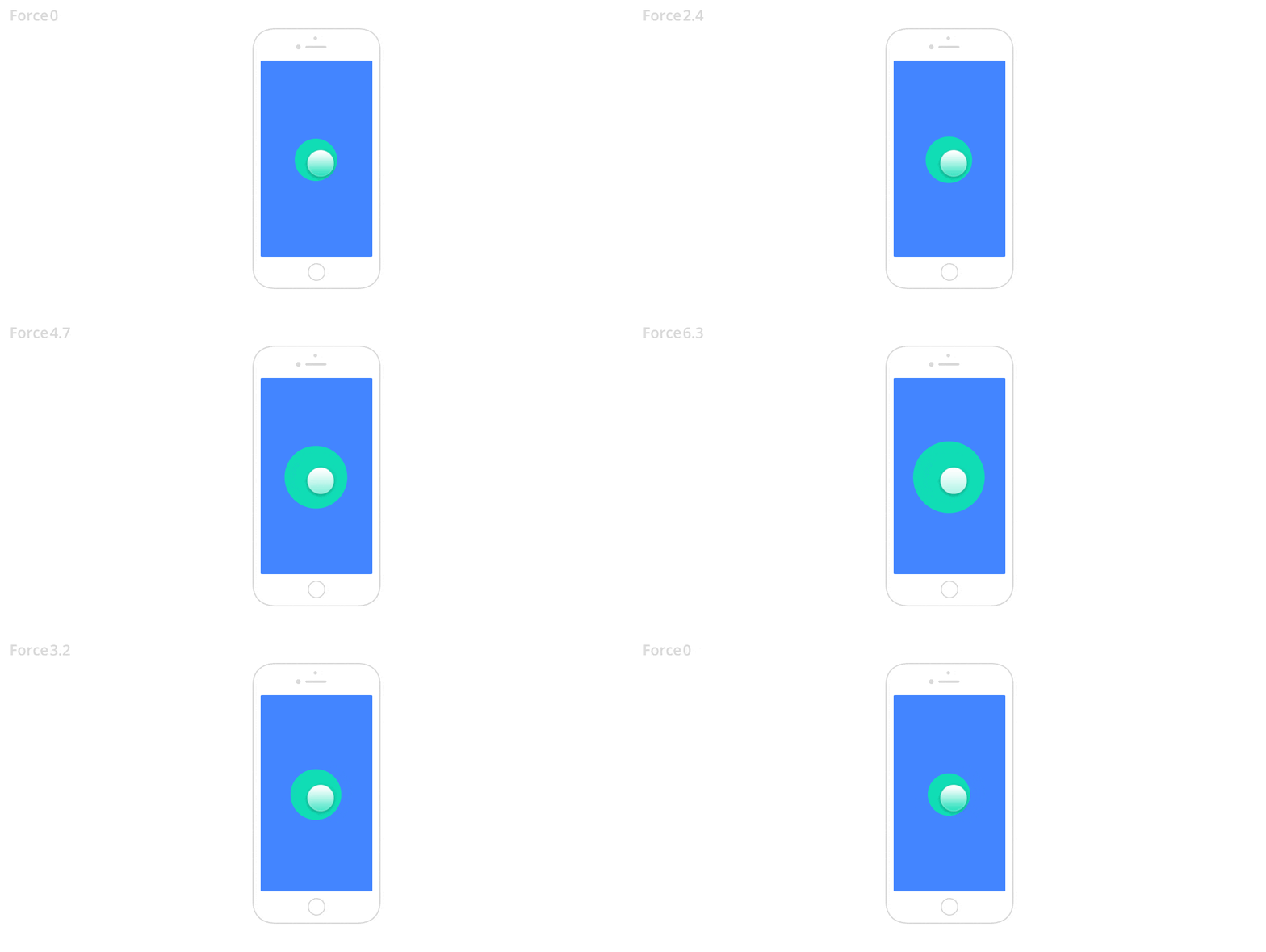
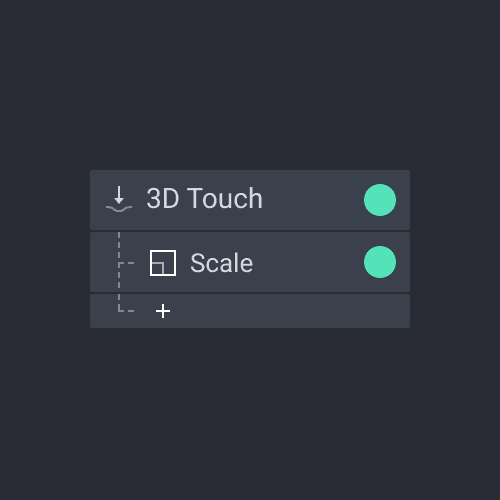
A response is activated based on the intensity of a touch force. The value of the touch force can range from 0 to 6.7.
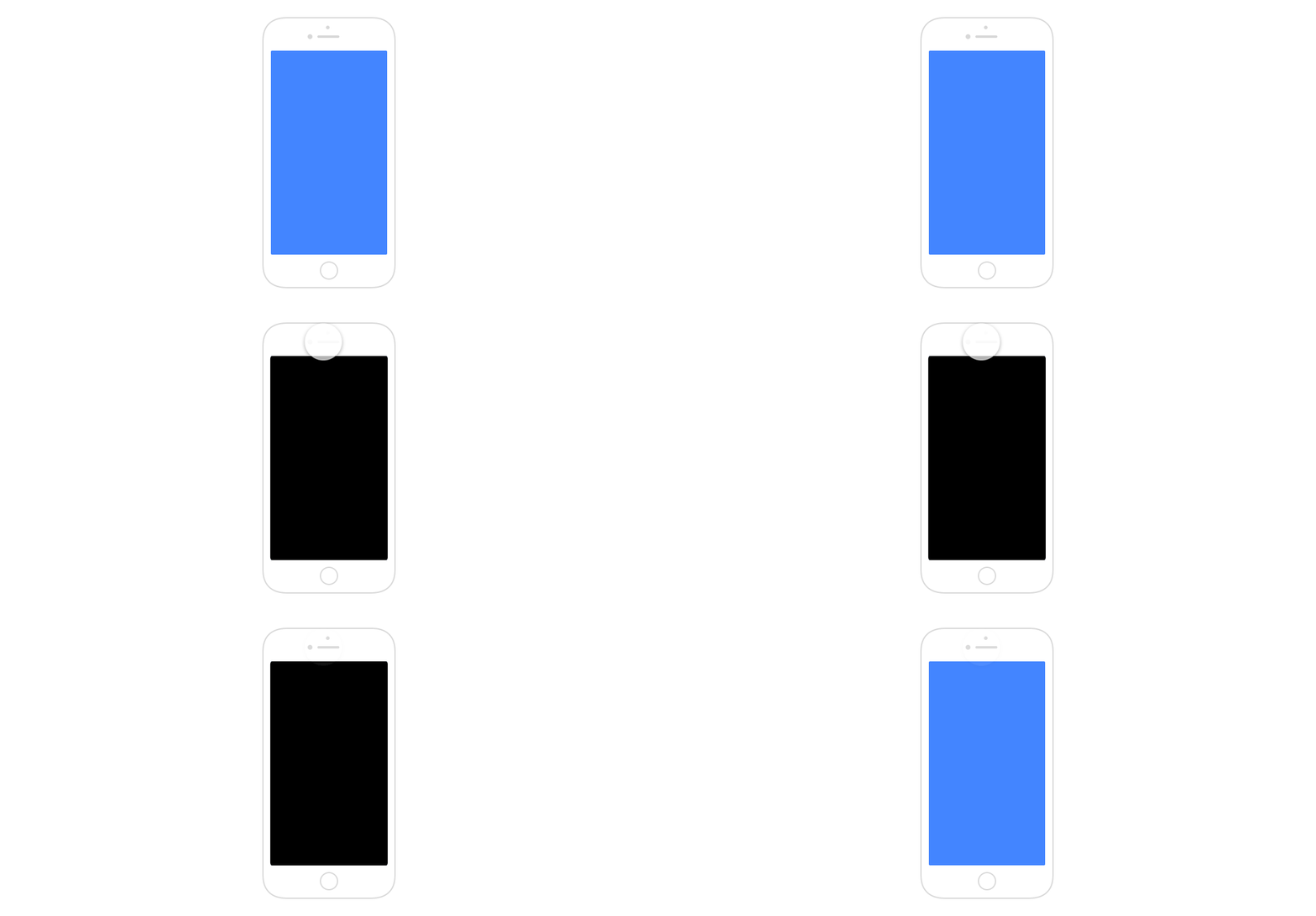
Note that 3D Touch is only supported by older Apple devices such as iPhone 6s, iPhone 6s Plus, iPhone 7, iPhone 7 Plus, iPhone 8, iPhone 8 Plus, iPhone X, iPhone XS, and iPhone XS Max.
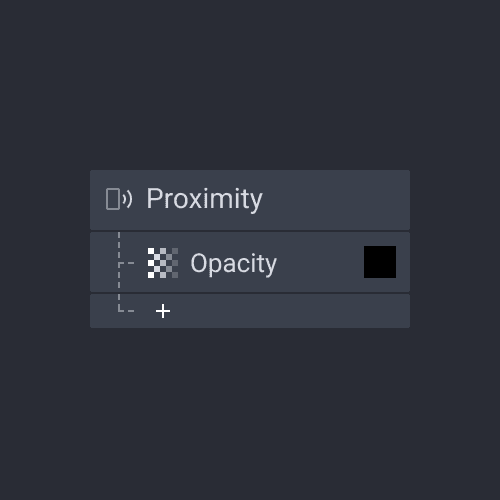
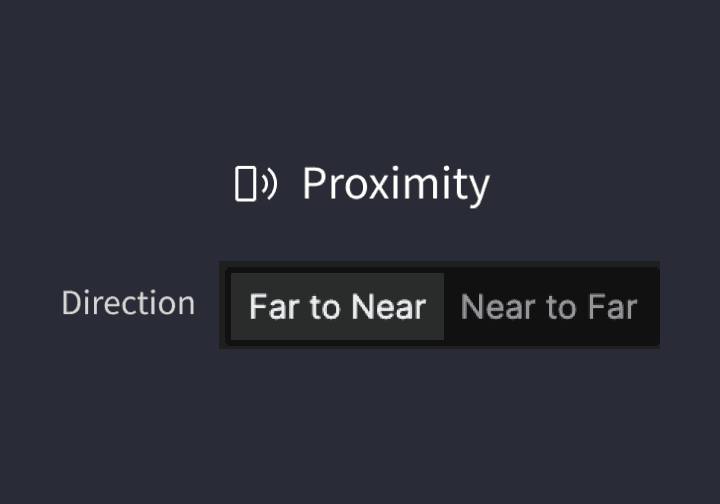
It's used to create interactions based on how close or far something is from the smart device's proximity sensor.
Far to Near
A Response activates if the device moves closer to a physical object
Near to Far
A Response activates if the device moves away from a physical object
Far to Near
A Response activates if the device moves closer to a physical object
Near to Far
A Response activates if the device moves away from a physical object
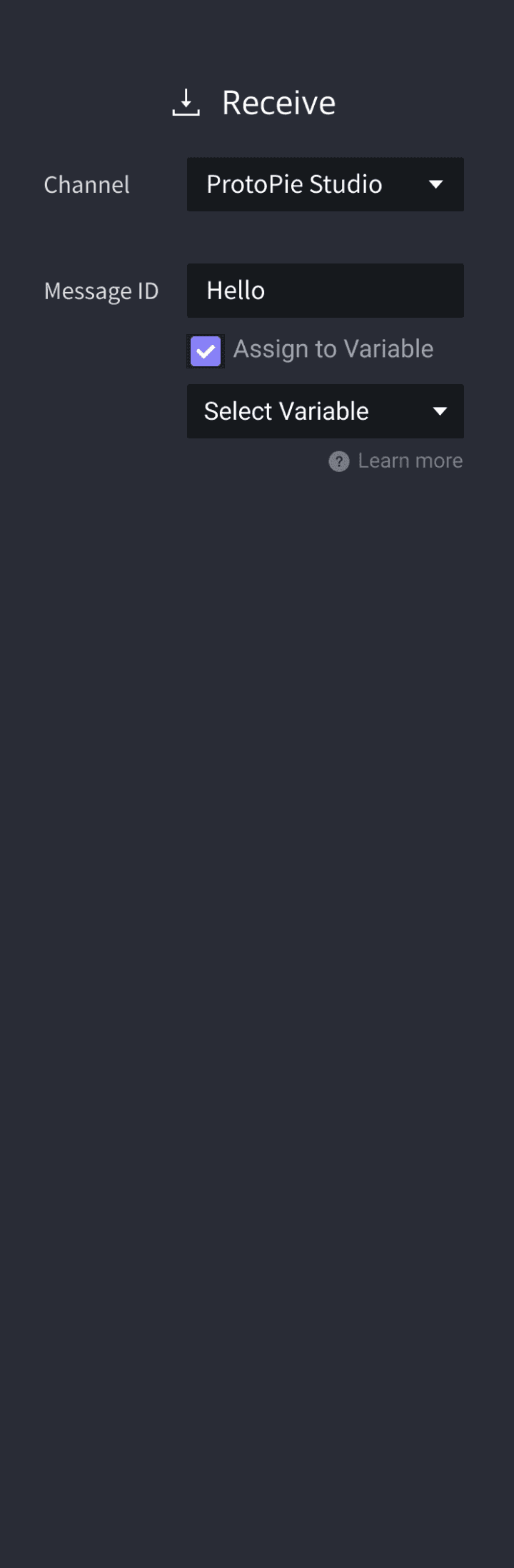
Receive triggers make interactions among devices possible. They must be used together with Send responses. A response is activated when a device with the Receive trigger accepts a message sent from a different device using a Send response. The message received on one device should match the one sent from the other device.
Send and Receive messages can be used within the same scene to modularize interactions or reuse a set of responses, avoiding repetitive work.
Channel [Component]
Inside the component, you can use the Send response to send a message and this can be received by a Receive trigger outside the component. This also works the other way around. Refer to Components for more information.
Channel [ProtoPie Studio]
Select ProtoPie Studio as a channel to allow interactions among devices (it works the same way for ProtoPie Connect).
Channel [Current Scene]
To modularize interactions or reuse a set of responses avoiding repetitive work, you can use Receive triggers and Send responses in one scene.
Message
A message is a string that is transmitted. When the message in the Receive trigger on one device matches the message in the Send response, interactions among devices can take place.
Assign to Variable
It is possible to send a value together with a message. This value would have to be assigned to a variable upon receiving.
Channel [Component]
Inside the component, you can use the Send response to send a message and this can be received by a Receive trigger outside the component. This also works the other way around. Refer to Components for more information.
Channel [ProtoPie Studio]
Select ProtoPie Studio as a channel to allow interactions among devices (it works the same way for ProtoPie Connect).
Channel [Current Scene]
To modularize interactions or reuse a set of responses avoiding repetitive work, you can use Receive triggers and Send responses in one scene.
Message
A message is a string that is transmitted. When the message in the Receive trigger on one device matches the message in the Send response, interactions among devices can take place.
Assign to Variable
It is possible to send a value together with a message. This value would have to be assigned to a variable upon receiving.
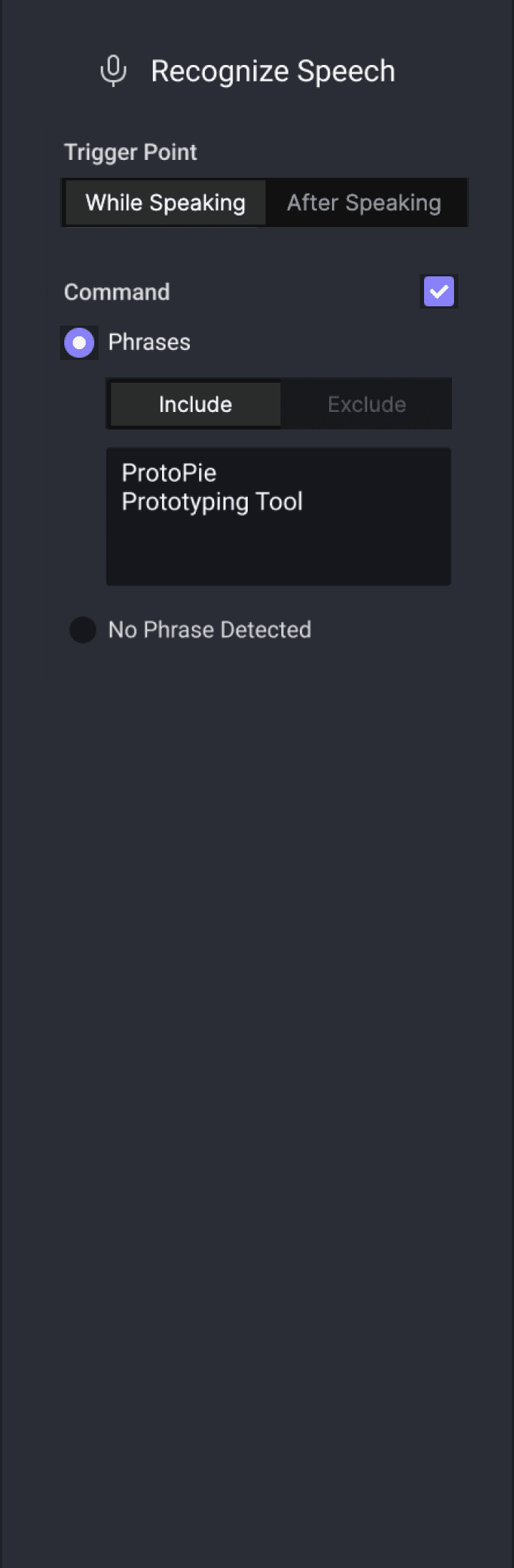
The Voice Command trigger enables triggering responses based on voice commands. You can set the Voice Command trigger to be triggered either while someone is speaking or after someone finished speaking. It's possible to include or exclude specific phrases within the commands.
In order to use the Voice Command trigger, you need to enable listening using the Listen response.
Learn more about voice prototyping.
Trigger Point
After Speaking
When a speech is no longer detected, meaning when you stop speaking. This trigger point does not work when Continuous has been activated in the Listen response.
While Speaking
When a speech is detected, meaning when you start speaking.
Command
Phrases - Include
The action triggers only if the detected voice command includes one of the listed phrases. You can enter various words, phrases, or sentences and separate them using line breaks.
Phrases - Exclude
The action triggers only if the detected voice command does not include any of the listed phrases. You can enter various words, phrases, or sentences and separate them using line breaks.
No Phrases Detected
This means that the incoming speech does not contain any phrases. It could be due to background noises or other sounds that cannot be interpreted as human language.
Trigger Point
After Speaking
When a speech is no longer detected, meaning when you stop speaking. This trigger point does not work when Continuous has been activated in the Listen response.
While Speaking
When a speech is detected, meaning when you start speaking.
Command
Phrases - Include
The action triggers only if the detected voice command includes one of the listed phrases. You can enter various words, phrases, or sentences and separate them using line breaks.
Phrases - Exclude
The action triggers only if the detected voice command does not include any of the listed phrases. You can enter various words, phrases, or sentences and separate them using line breaks.
No Phrases Detected
This means that the incoming speech does not contain any phrases. It could be due to background noises or other sounds that cannot be interpreted as human language.