
Importing Designs from Figma
There are two ways to import your designs from Figma into ProtoPie.
Via the plugin (recommended): Install the ProtoPie plugin for Figma and open the plugin in Figma.
Legacy import: First, open the Figma file you want to import. Then, open ProtoPie Studio and select Import from the File menu.
Key Differences Between Plugin and Legacy Import
The ProtoPie plugin for Figma allows you to:
Import one or multiple sections, frames and objects.
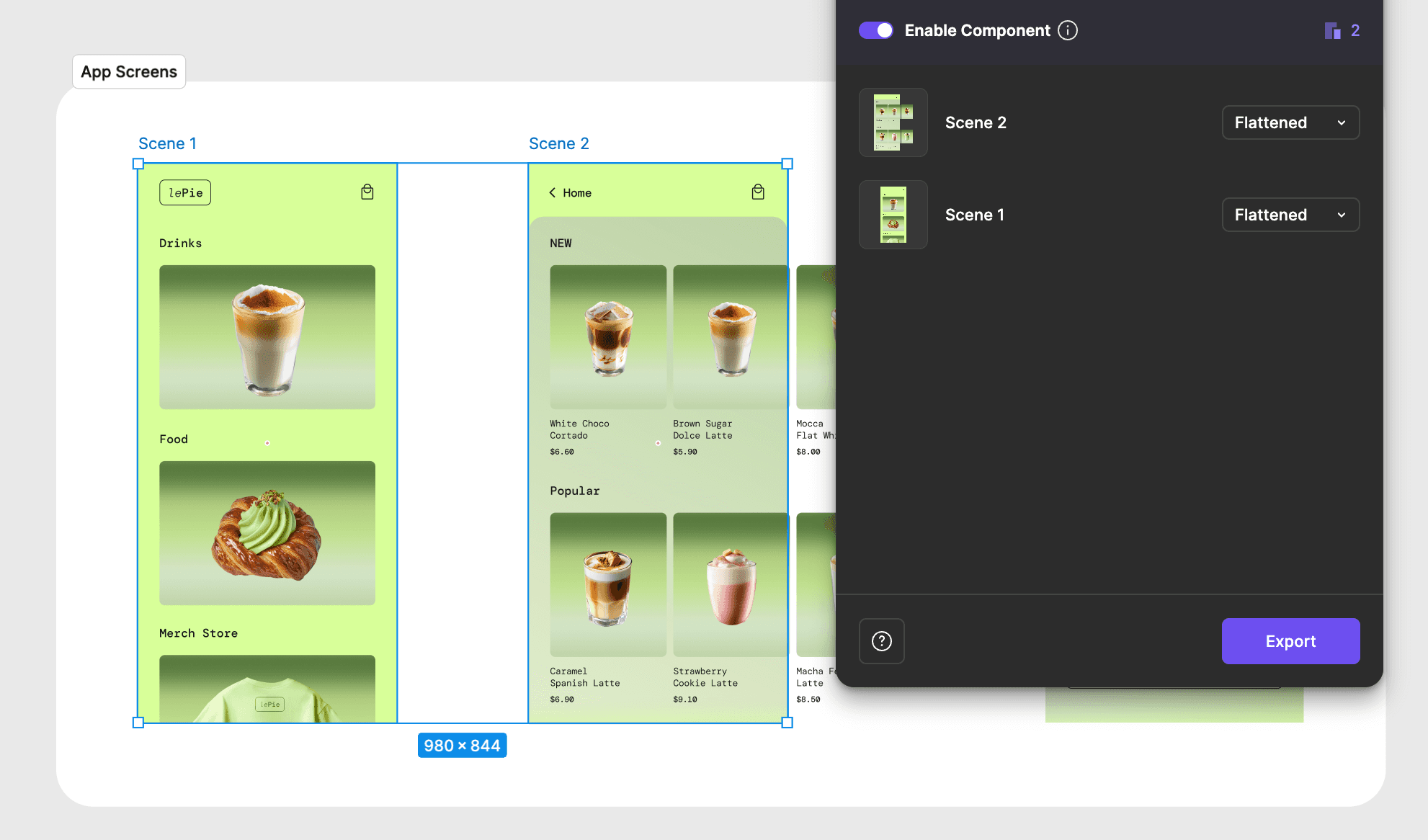
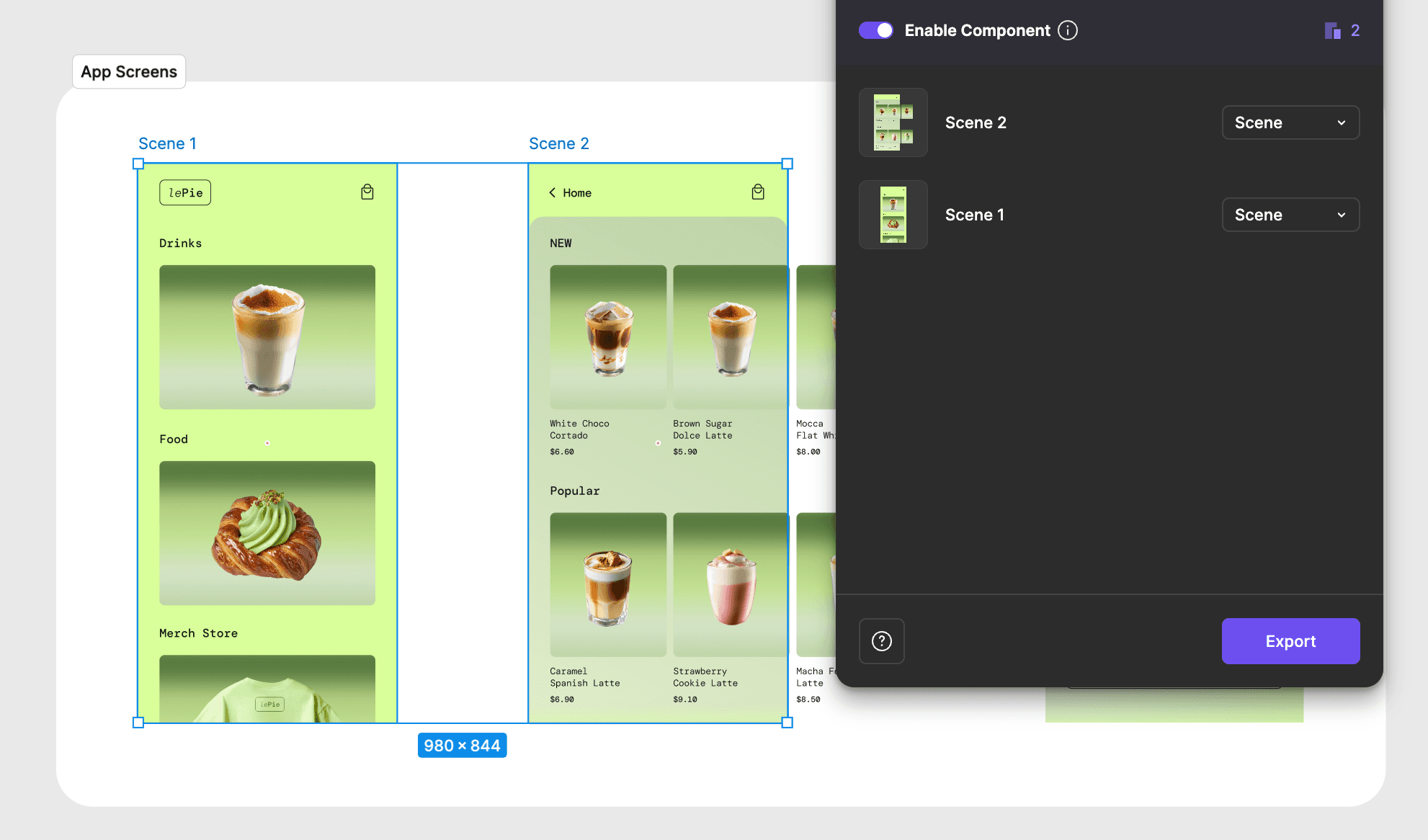
Import top-level frames as scenes.
Import what you selected.
Import vector layers as SVG.
Import text layers as SVG that can be converted to text layers.
Import constraints as constraints.
Import Auto Layout properties.
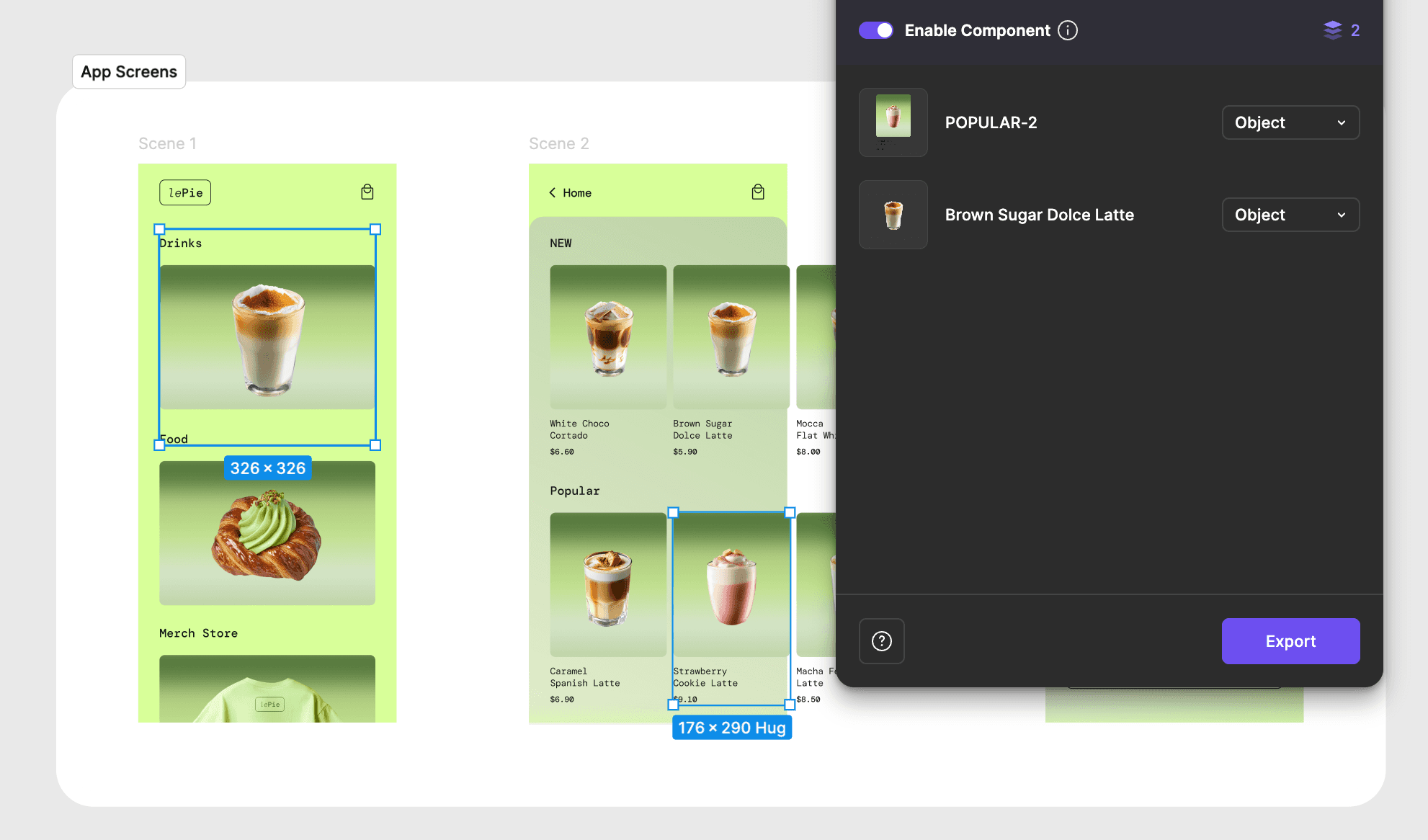
Import Figma components as reusable, linked components with variant support (Component Mode).
The ProtoPie Plugin for Figma

Import your designs from Figma into ProtoPie, all done locally–without latency.
Download and install the ProtoPie plugin for Figma, which requires ProtoPie 9.5.0 or higher.
Here are a few tips:
Keep both Figma and ProtoPie open and visible on your desktop while importing your designs into ProtoPie for the best performance.
When importing, use top-level frames as scenes and objects with the same layer hierarchy, positioning, and constraints as in Figma.
Here’s what’s new with the import experience:
Items are now imported individually and appear in ProtoPie Studio as soon as they’re ready. Previously, all items were processed at once and only became visible after everything finished—this update makes importing faster and more seamless.
Supported Properties
Visibility
Lock
Position
Size
Rotation
Opacity
Constraints
Fill (solid color & image)
Borders
Shadow
Auto Layout (core properties)
Learn more about layer properties in ProtoPie.
The plugin also supports importing these elements:
Sections
Main components - when Component Mode is enabled, main components are imported directly to your ProtoPie Library as reusable components
Component instances - stay linked on the canvas as references to Library components
Component variants - imported as separate components with variant support

Legacy Figma Import
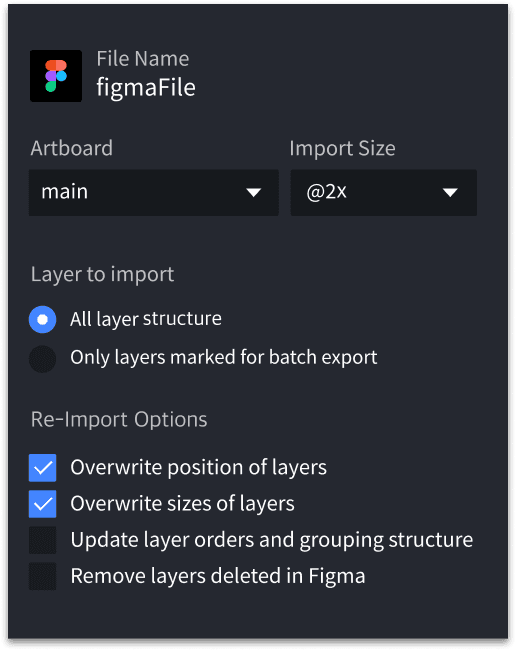
The legacy import allows you to import all layers, or only those marked for export, from your Figma files. This function requires ProtoPie 9.1.0 or higher due to recent structural changes in Figma. Learn more about marking for export in Figma.
Looking to improve your skills in managing large-scale projects and resources effectively?
Learn to import only essential assets from Figma or other design tools, optimize the prototype's performance, and reduce unnecessary clutter with our newest Mobile Game prototyping masterclass.
If you wish to explore further, join the ProtoPie Masterclass for free and learn advanced techniques and strategies to take your ProtoPie skills to the next level. Our expert instructor will guide you through the best practices for creating successful projects. Sign up now and become a ProtoPie power user!
FAQs
why-does-it-take-so-long-to-import-my-designs-from-figma
Why does it take so long to import my designs from Figma?
Are you having trouble importing your designs to ProtoPie? Here are some troubleshooting steps:
Ensure you have the latest versions of Figma, Sketch, and Adobe XD installed, along with their respective ProtoPie plugins.
Make sure you use a fast and stable internet connection with enough bandwidth.
why-have-some-layers-been-imported-from-figma-incorrectly
Why certain layers from Figma were imported incorrectly?
If you notice that some layers haven't been imported correctly, it could be due to unsupported properties. We recommend checking out our import documentation, which provides detailed information on the supported properties when importing designs from Figma, Sketch, or Adobe XD.
partially-supported-properties-import-from-figma
What happens with partially supported properties?
Some design properties in Figma are only partially supported by ProtoPie. While they won’t block export, they might not work as intended after import. Here are some common cases:
Multiple fills: These are exported as editable SVGs. If you want more control, consider separating each fill into its own layer or keeping just the top or bottom fill.
Advanced stroke settings: These are also exported as SVGs. To ensure consistency, you can convert strokes into rectangles before exporting.
Layer blur or inner shadow: These effects are ignored during export. If needed, flatten the layer to PNG—just note that this version won’t be editable in ProtoPie.
error-layers-not-supported-import-from-figma
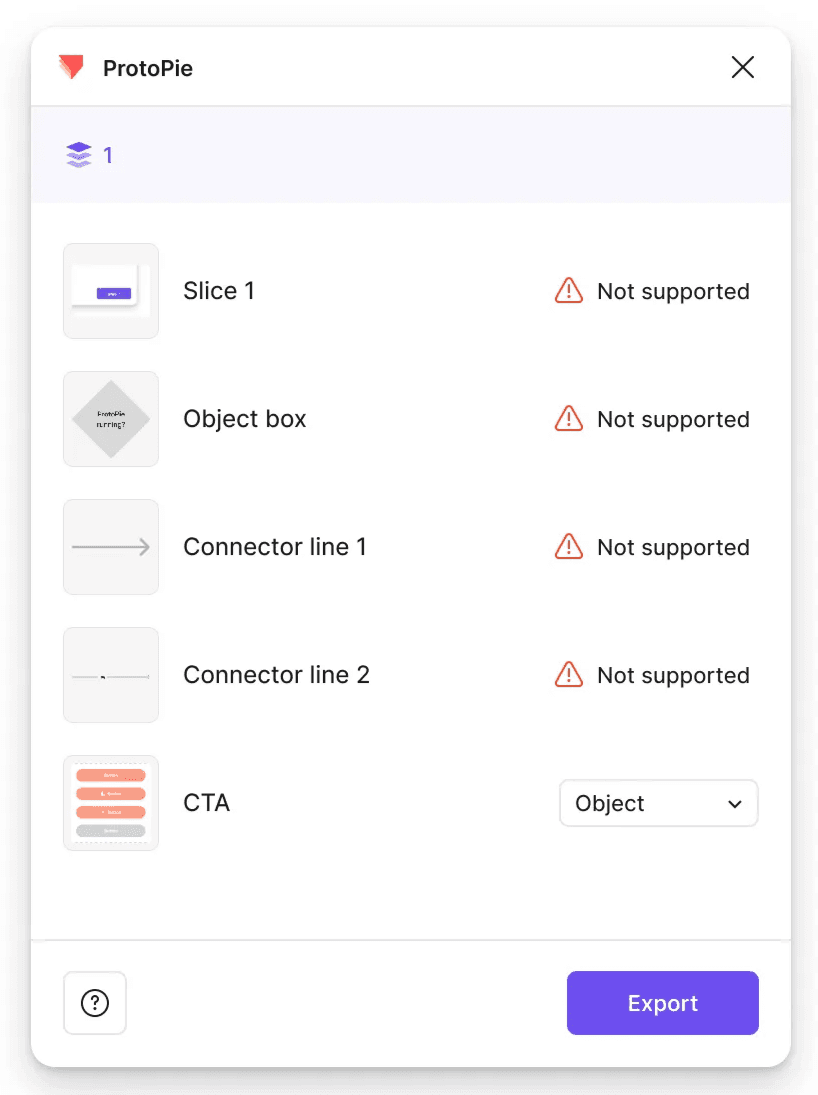
I received a message saying “Not supported” when exporting my design. What does it mean?
This message appears when a selected layer contains elements or properties that ProtoPie doesn’t fully support during export. While you can import these layers from Figma, they might not render or function as expected in ProtoPie due to limitations in feature compatibility.
supported-layers-import-from-figma
What type of layers are supported?
Frames, sections, and most basic layers can be exported without issues. However, some elements like slices or FigJam connectors aren’t supported for export. If you're working with those, try converting them to frames or standard layers before exporting.